A great website does more than look good at the top of the page. As you scroll, it pulls you through a story.
For a coffee brand, that might mean espresso slowly pouring into a cup. For a perfume brand, a drop transforms into a bottle. A tech company can take you through a field of purple light, while a denim brand can make its signature green stitching appear as you move down the page.
I've built all of these with Claude using the same basic process. You don't need to write code or buy a theme. You give Claude a set of instructions, connect the tools it needs, and guide it through the important decisions.
The goal is a website with the polish and strategy you'd normally associate with an expensive custom build. The “$10K” idea isn't a guaranteed valuation. It's about combining thoughtful copy, custom visuals, interactive design, and a clear path for customers to take action.
Here's the complete workflow, from an empty folder to a live website on your own domain. The setup and decisions are straightforward, but allow time for generation and building: my builds have taken anywhere from about 20 minutes to over an hour, before revisions.
What You'll Learn
- Use the 10K Websites skill to guide Claude through planning, copy, design, and deployment.
- Connect Higgsfield to generate and approve custom hero animations and supporting images.
- Preview the complete website in a browser and request revisions using plain English.
- Connect Hostinger to publish on your domain and deploy future changes through Claude.
Table of Contents
- What You'll Need
- 1. Set Up Claude Code
- 2. Connect Higgsfield for Image and Video Generation
- 3. Add the Free 10K Websites Skill
- 4. Give Claude Your Brand Direction
- 5. Design the Scrolling Hero Video
- 6. Let Claude Build the Website
- 7. Preview the Site and Request Revisions
- 8. Get Hosting and a Custom Domain
- 9. Connect Hostinger and Deploy the Website
- 10. Make Updates Through Claude and Manage Hosting in hPanel
- A Custom Website You Can Keep Improving
What You'll Need
This setup connects three tools, with Claude Code acting as the central workspace:
- Claude Code: Plans the site, writes the copy, builds the pages, handles revisions, and coordinates deployment.
- Higgsfield: Generates the images and the video used for the scrolling hero section.
- Hostinger: Hosts the finished website and connects it to your custom domain.
You'll also use the free 10K Websites skill. Think of a skill as a reusable instruction set that gives Claude a specific process to follow. This one guides the research, brand questions, visual generation, website build, and launch.
That's an important distinction. You're not just asking AI to make a pretty homepage. The skill is designed to research your niche and customers, write relevant copy, and organize the site around what encourages people to buy.
Some links below are affiliate links. If you purchase through them, we may earn a commission at no additional cost to you.
1. Set Up Claude Code
Create your account and choose a plan
Start at Claude and create an account using Google or your email address.
For the workflow demonstrated here, Pro was the starting plan because it included Claude Code. The monthly option shown was $20 per month, with annual billing also available. Max started at $100 per month.
The model choices in this setup were Opus and Fable:
- Pro with Opus: A lower-cost option that still works with the skill and can produce a strong website.
- Max with Fable: The option I used for this build to get the strongest design results available in my account.
- Pro with additional usage credits: Another route shown for accessing Fable, though pay-as-you-go costs can add up.
Promotional access, model names, and plan availability can change. Check the current Claude plans before paying, and confirm which models and Claude Code features your account includes. You don't need to choose the most expensive option simply to use the skill.
Install the desktop app
After selecting your plan and entering your payment details, download the Claude desktop app. Run the installer, then sign in with the account you just created.
Inside the app, switch to the Code tab in the upper-left area. This is where you'll build the website.
Choose your model, effort, and workspace
- Select your model. Open the model selector near the bottom-right of the prompt area. I chose Fable; Opus also works with the skill.
- Increase the effort. Move the effort slider all the way to the right for the highest available setting.
- Create an empty project folder. Click the folder icon, choose Open folder, and create a new folder somewhere easy to find.
- Select that folder as your workspace. This becomes the home for your website files.
- Check the permission mode. I used Auto so Claude could work without stopping for approval at every step.
I named my folder “10K Websites Demo,” but you can use your business or project name. The important part is that you know where it is, because you'll add the skill there next.
2. Connect Higgsfield for Image and Video Generation
Higgsfield creates the visual assets that make this style of website possible, especially the hero animation that progresses as someone scrolls.
Create a Higgsfield account and make sure it has generation credits. Offers change frequently. My setup showed a $0 one-day trial, but the requirement is simply an account with enough credits to generate your images and video.
Once your account is ready, connect it to Claude:
- In Higgsfield, open MCP & CLI.
- Scroll to the connection information and copy the supplied URL.
- Return to Claude Code and click the plus icon.
- Open Connectors, then Manage connectors.
- Click Add, then Add custom connector.
- Name the connector Higgsfield and paste the URL you copied.
- Click Add, then Connect.
- In your browser, sign in to Higgsfield if prompted, review the authorization, and click Allow.
- Use Open link to return to Claude.
Claude can now request images and video through Higgsfield from inside your project. You won't need to manually move every generated asset between the two tools.
3. Add the Free 10K Websites Skill
Download the free 10K Websites skill, then open the workspace folder you selected in Claude Code.
Drag the downloaded skill into that folder. For this workflow, you're placing it in the project directory so Claude can read and extract it when you send your first prompt.
You can start with something simple:
Use the 10K Websites skill to create a website for my coffee brand.
Replace “coffee brand” with your own business. You can include extra information, but you don't need a huge prompt. The skill is designed to ask the questions needed to develop the site.
Send the message and give Claude time to read the skill and check that the necessary tools are working.
4. Give Claude Your Brand Direction
Claude will guide you through a short discovery process. This is where you tell it what the business is, what you already have, and what the website should feel like.
Explain whether the business already exists
For my coffee site, Claude asked whether I was starting a new idea, had a real shop with photos, or had a real shop without photos.
I chose a new idea and asked it to generate the visuals. If you already have a business, give it the real information and assets you want reflected on the site.
Choose a visual style
The suggested directions included:
- Warm, calm, and handcrafted
- Dark and dramatic
- Bright and playful
- Clean and minimal
I chose warm, calm, and handcrafted for the coffee brand. You can also type your own answer rather than sticking to a preset.
Supply references and existing assets
Claude also asks about inspirational websites, reference images, logos, product photos, and other brand files.
If you have those, drop them into the chat. If you're starting from scratch, ask Claude to develop the direction and create the assets for you. That's the route I took for the demo brand.
The process works either way. You're not required to arrive with a finished identity, but you also don't have to replace real brand materials with AI-generated ones.
5. Design the Scrolling Hero Video
The hero is the large opening section at the top of the website. In this design, the animation moves forward as someone scrolls, with text appearing at different points along the way.
This is one of the biggest creative decisions in the build. Choose a concept that gives the page a clear visual progression.
For the coffee site, Claude suggested an espresso pour, a pour-over, or falling coffee beans. I chose the recommended espresso concept: coffee falls from the top of the page and eventually fills a cup.
You can choose a recommendation or describe your own idea. Claude also asks for the brand name. I used its suggested name for this project.
Approve the starting frame first
Using the Higgsfield connection, Claude generates the starting image for the hero video.
Review this carefully. It's the image that establishes how the opening of the website will look. In my case, it showed the espresso machine with coffee beginning to drip against a dark background.
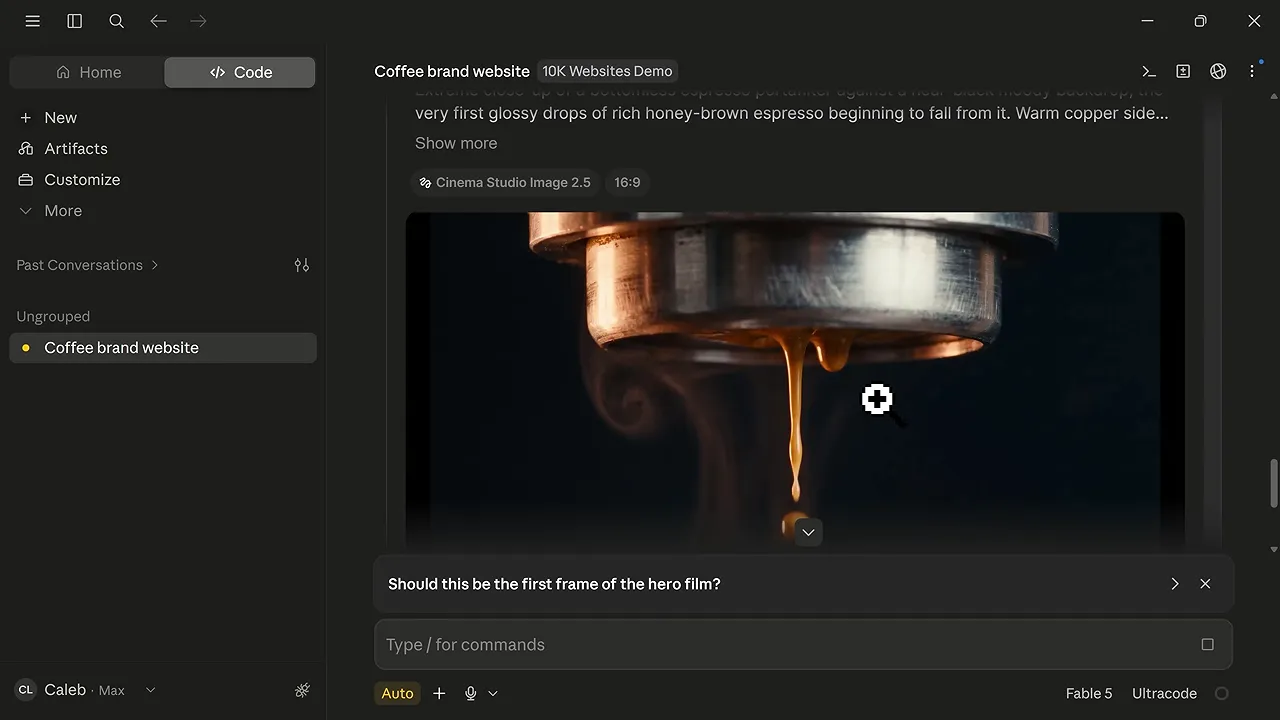
If the question panel covers part of the image, minimize it so you can inspect the full composition. Then either approve the frame or explain what should change.
Choose a video model and review the animation
Next, Claude presents the available video-generation model options and their credit costs. I chose Seedance for this build.
Generation can take a few minutes. When the video is ready, play it through before approving it. Claude also reports the cost of regenerating it and your remaining credits, so you can make that decision with the budget in mind.
For my coffee brand, the animation moved from the espresso machine down through the pour and finished with a full cup. That gave the hero section a clear beginning and end.
Approve the supporting images
Claude then generates imagery for the other sections of the website. My set included coffee-related images that would become supporting cards farther down the page.
Review those as well, then tell Claude to use them or request changes. Once the visual assets are approved, it can build the complete site.
6. Let Claude Build the Website
At this point, Claude has the skill, your brand direction, the approved hero video, and the supporting imagery. It can now assemble the website.
This is the longer waiting stage. My builds have taken around 20 minutes to more than an hour, depending on complexity. Give it time rather than assuming something is wrong because the work isn't instant.
The result is more than the opening animation. For the coffee brand, Claude created supporting product sections, an interactive coffee-pull element, brand content, reviews, and calls to action.
Those sections still need your review. Treat the first version as a strong draft, not an automatic final approval.
7. Preview the Site and Request Revisions
Claude may open an embedded preview on the right side of the app. In my experience, that panel wasn't the best place to judge the finished result.
I recommend closing it and opening the preview link Claude provides in your normal web browser.
Make one complete pass through the page
Scroll from the top to the bottom and write down everything you want changed. Pay attention to:
- Hero timing: Does the animation progress properly as you scroll?
- Text placement: Is any copy clipped, hidden, or awkwardly positioned?
- Typography: Do the fonts have the weight and feel you want?
- Images: Do the supporting visuals suit the brand?
- Sections: Is there anything you want removed, rewritten, or reorganized?
- Interactive elements: Do buttons and other interactions behave as expected?
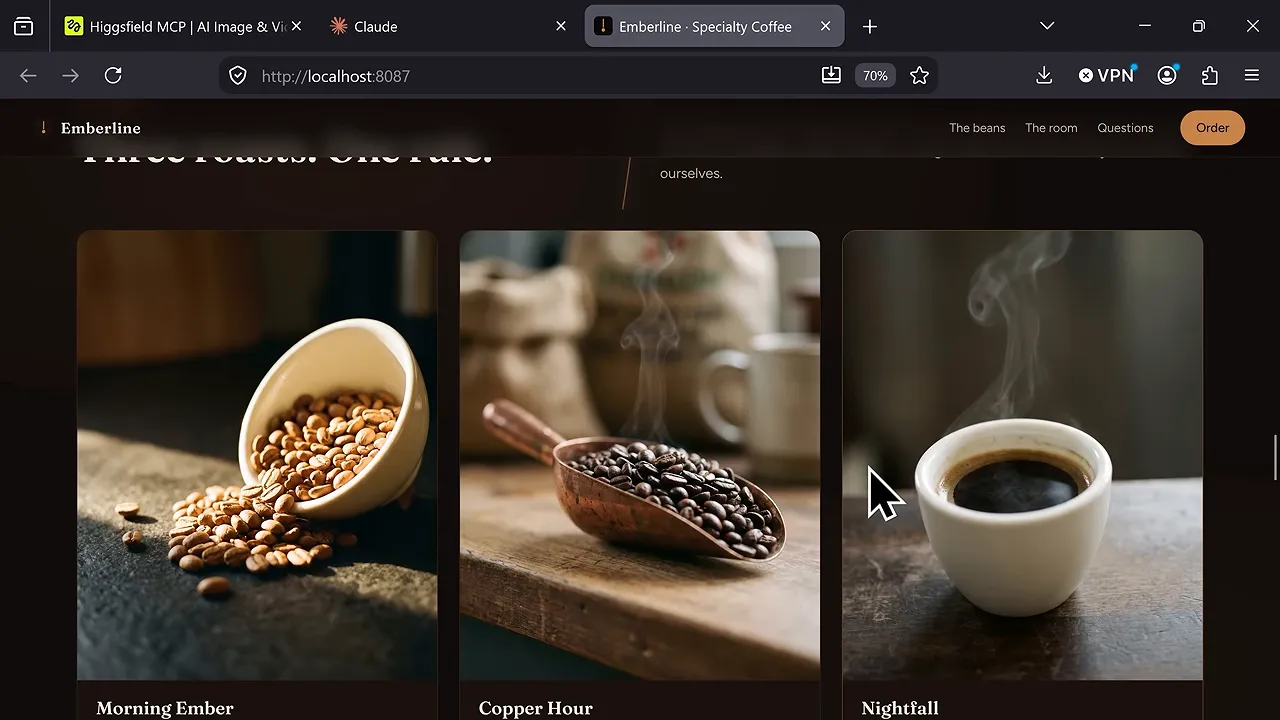
My first version had a block of hero text that was cut off. I also wanted bolder fonts. Rather than trying to solve either issue myself, I gave Claude a plain-language revision request.
The second text block in the scrolling hero is getting clipped. Please fix its placement, make the fonts bolder, and run a final quality check across the site.
You can type your feedback or use the microphone for voice-to-text. Think of Claude as your website developer: explain what you're seeing and what you want instead.
Review the revised version
After Claude finishes, reopen the preview link and check the changes. In my build, the missing text appeared correctly and the typography was heavier.
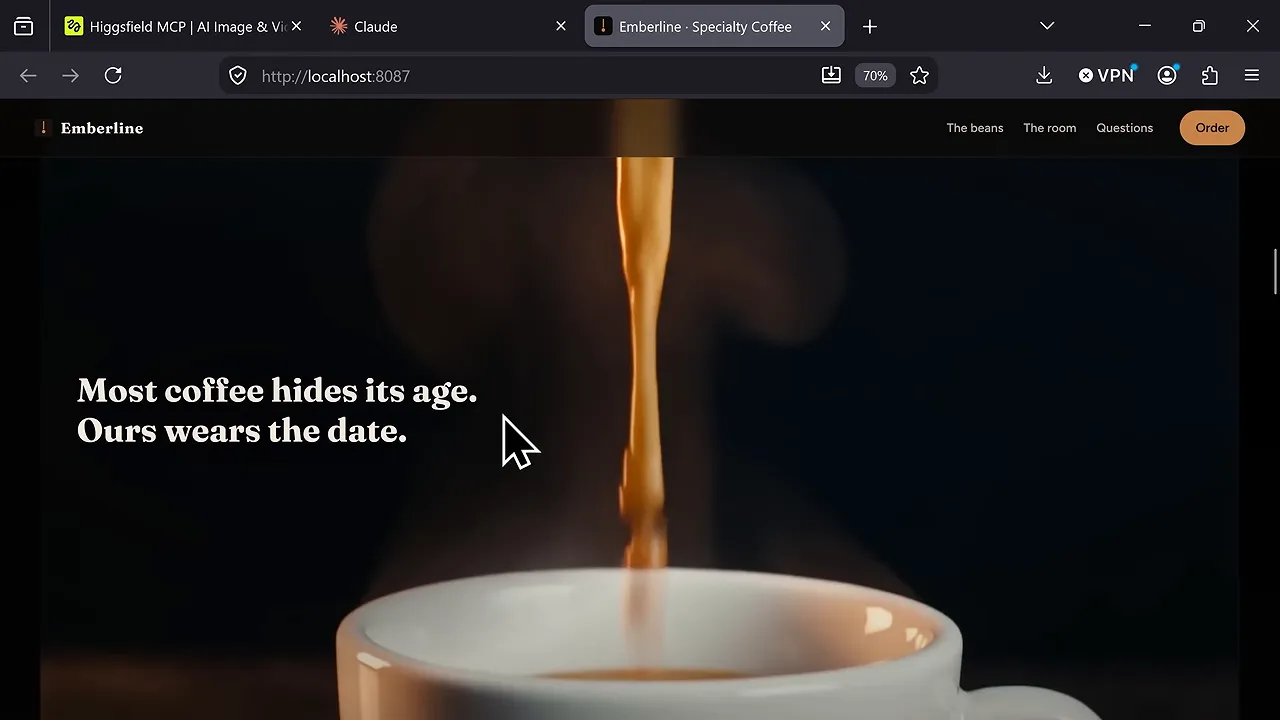
If something still isn't right, keep revising. Once you're happy with the result, choose Get it online when Claude offers that next step.
8. Get Hosting and a Custom Domain
For this particular workflow, I recommend Hostinger because its connector lets Claude Code deploy the site and publish future updates directly.
That completes the chain: Higgsfield handles the generated visuals, Claude Code handles the build, and Hostinger handles the live website.
The Hostinger offer used for this setup included an additional 10% discount through our link. Check the current checkout terms, since pricing and promotions can change.
Choose the plan and billing period
On the Hostinger page, click Get a plan. I selected the Business plan for this website.
Review the billing period carefully. The checkout defaulted to 48 months, which is a long commitment. I switched to 12 months. In the offer shown, that included a free domain for the first year.
I searched for emberlinecoffeeshop.com, selected it, and changed the domain registration period from two years to one year so the initial domain charge matched the free first-year offer.
Before continuing, check the hosting term, domain term, total price, and any applied discount. Then create your Hostinger account and enter your billing and payment information.
Skip the website-building onboarding
Since the website is already built in Claude, you don't need to go through Hostinger's website-creation onboarding.
- Close the onboarding using the X in the top-right.
- Confirm with Leave.
- Open the navigation menu and choose Domains.
- Find your domain and click Set up.
- Complete the domain registration details and click Register.
- Check your email and follow the verification link Hostinger sends.
Once the domain is registered, you're ready to connect hosting to Claude.
9. Connect Hostinger and Deploy the Website
Return to the Hostinger Connector page used during setup.
- Click Install extension.
- Select Claude Code.
- Copy the provided installation instruction.
- Paste it into your Claude Code project conversation and send it.
- When the authorization page opens in your browser, review the request and click Allow.
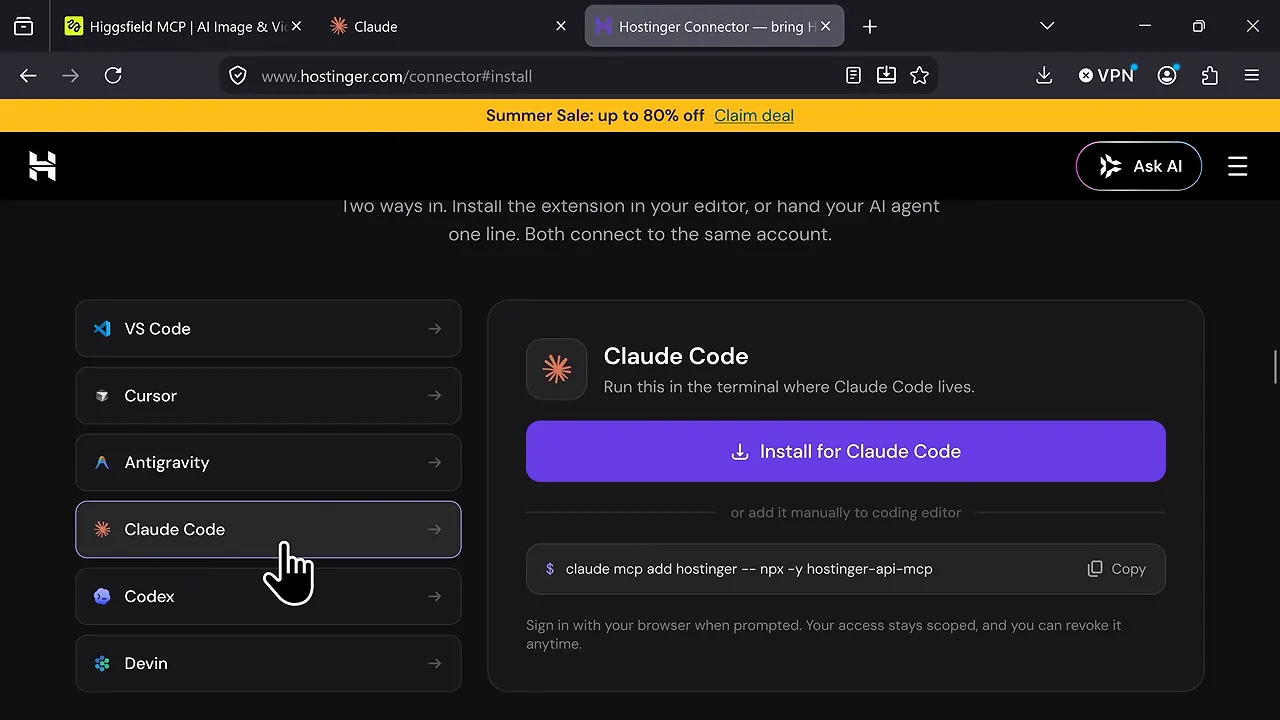
If the browser authorization page doesn't open automatically, close the Claude desktop app and reopen it. Return to the same conversation and ask Claude to open the authorization page again. That was the quick fix for this setup.
Back in Claude, confirm the domain you want to use. I selected the domain I'd just registered.
Claude then deploys the website and connects it to the custom domain. This can take a few minutes. When it finishes, open the live link it provides.
Check the live site on desktop and mobile
Go through the published website again, including the scrolling hero and the lower sections. Open it on your phone too, rather than judging the mobile layout only from a desktop preview.
The examples I built were designed to load quickly and adapt to mobile, but the live check is still an important part of finishing your own site.
10. Make Updates Through Claude and Manage Hosting in hPanel
Future website changes follow the same process as the first round of revisions. Return to your Claude Code project and describe what you want changed.
Because Hostinger is connected, Claude can update the files and deploy the changes to the live website. You don't need to manually upload a new version every time you change some text or replace an image.
For hosting and account settings, use Hostinger's hPanel:
- Sign in to Hostinger and open My account.
- Open the navigation menu and select Websites.
- Find your site and click Dashboard.
This is where you'll find the hosting information and settings for your website.
If you can't locate something, click Ask AI near the top-right. Follow the activation prompts to open Hostinger's Kodee AI assistant. It can help you find settings and work through hPanel questions, with access to human support when needed.
A Custom Website You Can Keep Improving
The scrolling animation is what makes this style stand out, but the useful part is the connected workflow behind it.
You provide the business direction. The skill gives Claude a repeatable process. Higgsfield supplies the visual assets, Claude builds and revises the pages, and Hostinger publishes the result.
You still make the creative decisions and approve the finished work. But you can do it in plain English, without needing to become a developer first. Once the site is live, that same conversation becomes the place where you keep improving it.
Made with VideoToBlog using How to Build $10K Websites in Minutes (Claude AI)


