Claude becomes much more useful when you stop treating it as a box for quick questions. It can read your documents, research a decision, build a working spreadsheet, remember your business, and carry out tasks inside the tools you already use.
The easiest way to learn it is to climb six levels:
- Talk to Claude: write good prompts and refine the answers.
- Give Claude your world: upload files, share images, and bring in current information.
- Make real things: create documents, spreadsheets, pages, and interactive tools.
- Make Claude know you: organize projects, instructions, and memory.
- Connect your apps: let Claude work with your calendar and business tools.
- Let Claude work while you’re away: use Cowork, scheduled tasks, and eventually Claude Code.
You do not need a technical background to start. I’ll use a fictional handmade candle shop called Amber Light throughout, but use your own topic as you go. A job search, newsletter, school project, or business you actually care about will teach you far more than copying a candle example.
What You'll Learn
- Better Claude prompts combine clear context, a specific task, and an explicit output format.
- Files, Research, Projects, and memory give Claude the context needed for more useful work.
- Connectors and Cowork extend Claude into real tools, with permissions controlling its freedom to act.
- Claude Code can build reusable local tools that run without a new AI conversation.
Table of Contents
- Level 1: Talk to Claude
- Level 2: Give Claude Your Files, Images, and the Internet
- Level 3: Create Real Documents, Spreadsheets, and Interactive Tools
- Level 4: Make Claude Know Your Work and Remember You
- Level 5: Connect Claude to Your Apps and Install Skills
- Level 6: Let Claude Work While You’re Away
- Beyond the Six Levels: Build with Claude Design and Claude Code
- Build a Tool You Can Run Again Without Claude
- The Skill That Connects Every Level
Level 1: Talk to Claude
What is Claude AI?
Claude is an AI assistant made by Anthropic. You communicate with it in normal language, and it can answer questions, write, analyze information, and build things.
What stands out to me is its natural writing, its ability to work with documents and files, and how well it fits into longer, practical tasks. But the quality of the result still depends heavily on what you give it.
Create your free account
- Open Claude in your browser.
- Sign up with Google or an email address.
- Complete the account details and onboarding questions.
- Choose the free plan to get started.
- Review the setting that controls whether your conversations can help improve Anthropic’s models.
I prefer to turn the model-improvement option off for privacy. That is a personal choice, but it is worth making deliberately rather than clicking through without reading.
In my setup, Pro was listed at $20 per month on monthly billing, or the equivalent of $17 per month billed annually. Pricing, model names, feature access, and menus can change, so check the options in your account. Follow the concepts here rather than expecting every button to stay in exactly the same place. The Claude Help Center is a useful reference when your interface differs.
My advice is to start free. Upgrade when you need a paid feature or when the usage limit becomes a regular interruption.
Use the three-part prompt: context, task, format
A prompt is simply the message you send to Claude. There is no secret programming language to learn.
A vague request such as “write a candle description” leaves Claude guessing about the product, the customer, and the style. It can produce something, but it will probably feel generic.
A stronger prompt has three parts:
- Context: who you are, what you are working on, and the information Claude needs.
- Task: exactly what you want it to do.
- Format: the desired length, tone, structure, and other constraints.
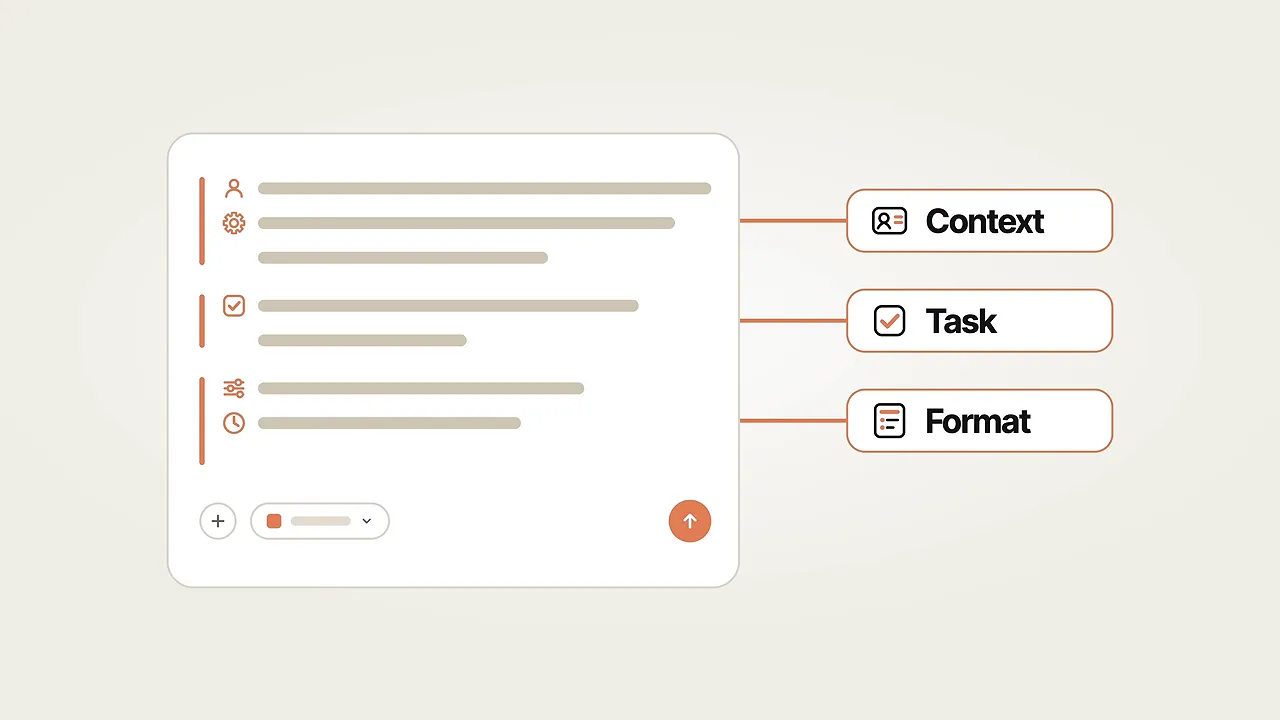
For Amber Light, that might look like this:
I own Amber Light, a small shop selling hand-poured soy candles with natural scents. Our customers like cozy homes and simple ingredients. Write a product description for our Autumn Cabin candle. Keep it warm and personal, use fewer than 100 words, and finish with a short invitation to light it this evening.
Now Claude has something to work with. You have not changed the assistant. You have changed the quality of the brief.
Your result will not be identical to mine, even if you use the same prompt. That is normal. Judge whether the answer works for your situation, not whether it matches a particular example.
Reply and refine instead of starting over
The first answer is a draft. The real skill is shaping it.
If a description is too long, stay in the conversation and ask:
Cut that to roughly half the length, but keep the detail that each candle is hand-poured.
Claude can use the context already in the conversation. You do not need to explain the whole business again for every adjustment.
Try this: ask Claude to write something useful for your own topic, then request two changes without starting a new chat.
Choose a model and effort level
The model is the AI doing the work. The names and version numbers evolve, but the practical choice is straightforward:
- Use the default model for everyday work. It is a sensible starting point for writing, questions, and routine analysis.
- Choose a more powerful model for difficult or important tasks. Think long contracts, complex planning, or work where small details matter.
- Choose a lighter model when speed matters most. It can be a better fit for lots of small, simple requests.
The model families discussed here include Sonnet for general work, Haiku as a lighter option, and Opus for more demanding tasks. Your available choices depend on your plan and the current product lineup.
You may also see an effort setting. This controls how much thinking Claude puts into an answer. Leave it at the default for ordinary tasks, and raise it for complicated work with many steps.
More powerful models and higher effort consume your usage allowance faster. Every plan has limits that reset on a schedule. Hitting one does not mean your work has disappeared. You can wait for the reset or consider upgrading if it keeps disrupting you.
Level 2: Give Claude Your Files, Images, and the Internet
Keep each chat focused
Here is a simple habit worth building immediately:
Same task, same chat. New topic, new chat.
Start a fresh conversation with the new-chat button in the sidebar when you switch subjects. Claude names conversations automatically, and you can return to them from the sidebar or pin the ones you use frequently.
This keeps unrelated context out of the way and avoids turning every request into part of one enormous conversation.
Upload documents and ask a specific question
Claude can work with PDFs, Word documents, spreadsheets, and images. Use the plus button beside the message box, choose the file-upload option, and select your file.
For example, I can upload a supplier’s candle-wax price list and ask:
Compare the products in this supplier price list. Summarize the package sizes and costs, then identify the lowest price per kilogram.
In the example, Claude identified the bulk Golden Soy 464 option as the cheapest per kilogram. The important part is that it compared the unit cost rather than simply picking the smallest total price.
The same pattern works for a contract, bank statement, research paper, or recipe collection. Give Claude the document, then tell it what you need to understand or decide.
Use images for practical feedback
You can also upload a product photo and ask what would improve it.
With a candle photograph, Claude’s most useful feedback was that the background competed with the product. It made the image feel like a casual snapshot instead of a focused product shot.
Screenshots and handwritten notes are useful inputs, too. You are not restricted to polished documents.
Try this: upload the most boring document you regularly deal with and ask Claude to explain it in plain language.
Use web search for current information
A file upload gives Claude information from that file. It does not automatically give it current prices, today’s news, or the latest industry trends.
For those questions, ask it to search the web:
Search for current candle and home-fragrance trends. Explain the main themes and include sources I can check.
Open the plus menu and make sure Web search is enabled if Claude cannot search.
The useful part is not just the answer. It is the source trail. When facts matter, open the citations and check them.
Use Research for decisions that deserve more depth
Web search is good for a quick answer. Research goes further by investigating multiple sources and putting together a more substantial cited report.
This feature required a paid plan in my setup. After upgrading through the account menu, I could enable Research from the plus menu and ask:
Investigate the market for a small online handmade-candle shop. Cover the main buyers, typical prices, how independent brands market themselves, and the three biggest mistakes a new business should avoid.
The report included a short overview, detailed findings, and sources. For a new business, the mistakes to avoid were especially useful because they turned a broad research question into practical decisions.
Research can take several minutes or longer, and it uses more of your allowance than ordinary chatting. Save it for questions that justify the extra work, such as a major purchase, a career change, a move, or a business decision.
Level 3: Create Real Documents, Spreadsheets, and Interactive Tools
There is a big difference between asking Claude to describe a spreadsheet and asking it to make the actual file.
At this level, think in terms of two outputs:
- Downloadable files: Excel spreadsheets, Word documents, presentations, and PDFs.
- Artifacts: visual or interactive creations that open alongside the chat.
Build an Excel spreadsheet with working formulas
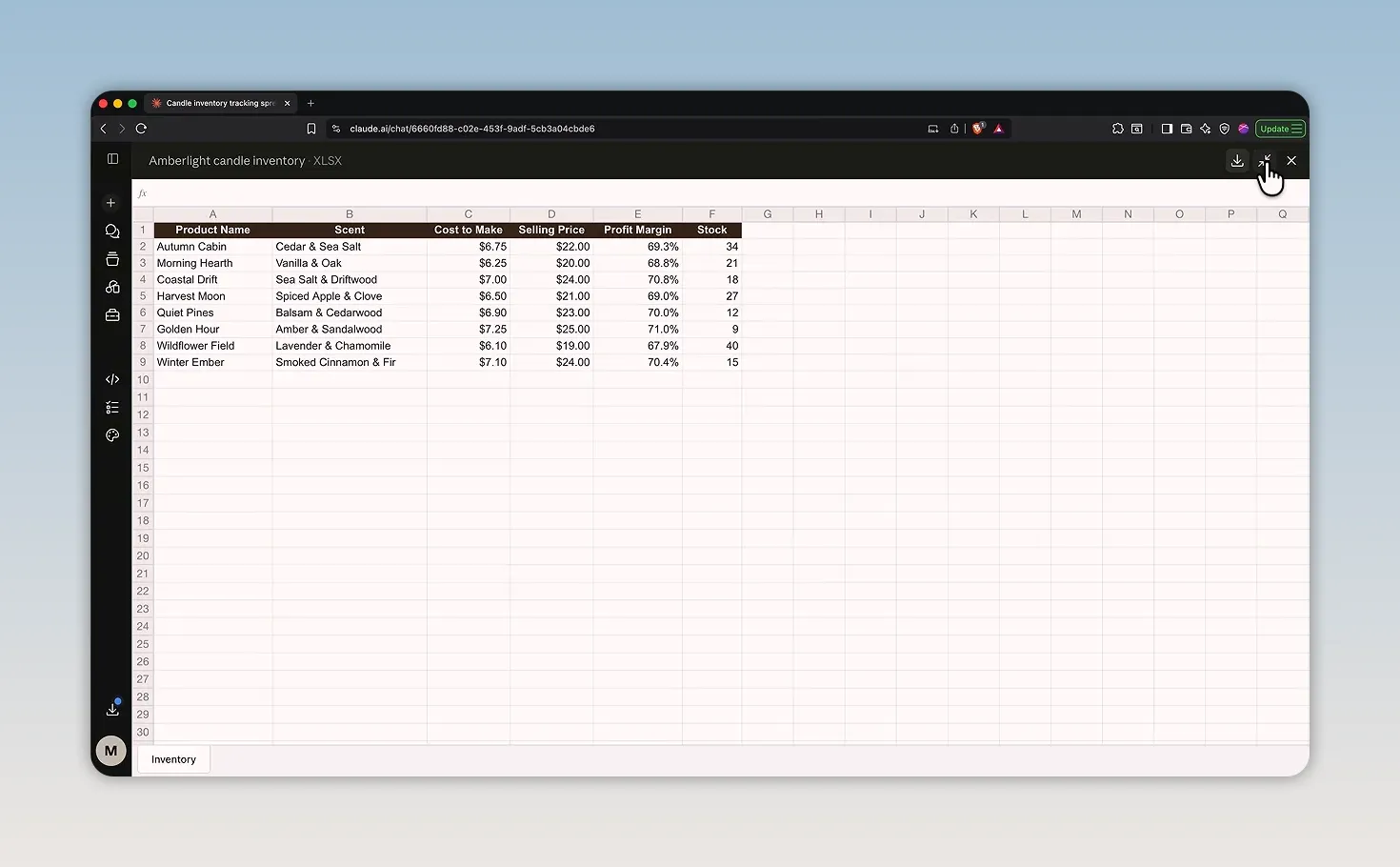
For the candle shop, I asked for an inventory workbook:
Build an Excel inventory tracker with product name, scent, production cost, selling price, calculated profit margin, and stock quantity. Include eight sample candles with realistic example figures.
Claude created a spreadsheet that could be expanded for inspection and downloaded as an Excel file, including working formulas.
You can use the same approach for a budget, resume, lesson plan, work report, or presentation. Tell Claude the intended file type and what should be inside it.
File generation can take a few minutes. That is normal. It is building an output rather than simply writing a response.
Build and revise an Artifact
An Artifact gives you a visual result beside the conversation. For example:
Create a warm, attractive landing page for Amber Light Candles. Include a main headline, three featured products, and an email signup section.
The first version used a warm color palette, product placeholders, and even a small candle-flame animation. It was a useful starting point, not a finished store.
Then I could refine it conversationally:
- Change the background to cream.
- Make the main headline larger.
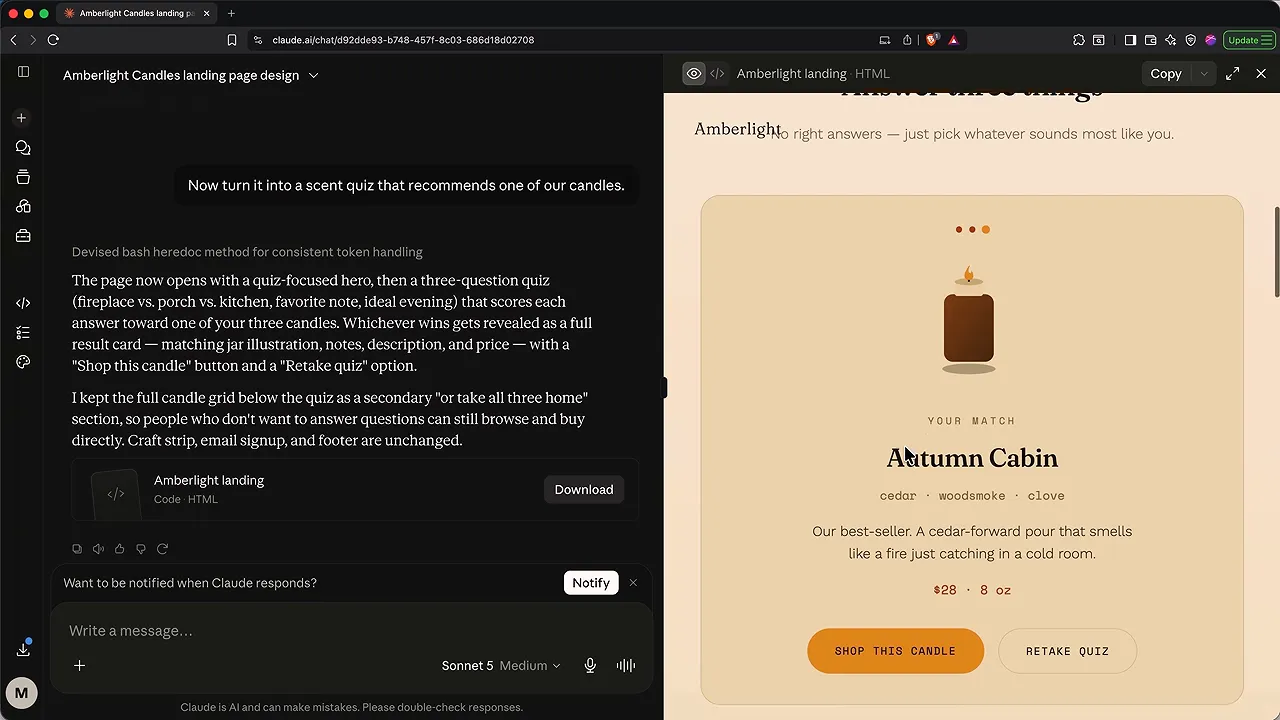
- Add a scent quiz that recommends a candle.
The quiz asked about the room, preferred scent notes, and the kind of evening the customer imagined, then returned a recommendation.
That is the mindset shift: keep talking to Claude as though a designer is sitting beside you. Ask for the next improvement instead of assuming the first output is the limit.
Try this: build one small tool for your life, such as a budget calculator, workout planner, or quiz.
Level 4: Make Claude Know Your Work and Remember You
Use Projects for a topic’s shared context
Once you have several useful conversations, the information starts to scatter. Projects give related work a home.
A project brings chats together around shared knowledge and instructions. To create one:
- Open Projects in the sidebar.
- Choose New project, give it a name, and create it.
- Add relevant files to its knowledge area.
- Write project instructions explaining the context and preferred approach.
- Start related conversations inside that project.
For Amber Light, I added the supplier price list and market-research report. Then I saved instructions describing the shop as a handmade soy-candle business with a warm, personal voice and customers who care about natural ingredients and cozy homes.
After that, a short request such as “give me three ideas for our first newsletter” had enough context to produce relevant suggestions without another long introduction.
Project knowledge supplies the reference material. Project instructions explain how to use it.
This is one of the biggest steps from occasionally asking Claude questions to using it as a regular work tool.
Understand personal instructions, memory, and chat history
These features solve different problems:
- Personal instructions are preferences you deliberately set for your chats, such as how Claude should address you or respond.
- Memory stores useful details Claude picks up from conversations.
- Search and reference chats allows Claude to find relevant information in previous conversations, even when it is not part of a stored memory.
Open your account menu, choose Settings, and look for your profile instructions in the general settings and remembered information under Memory.
You stay in control. You can inspect what Claude remembers, ask it to correct details, or delete the memory.
I also recommend enabling the search-and-reference option if you want Claude to draw more effectively on past work. Projects are still useful because they give a specific topic a deliberate structure rather than relying on general recall.
Use incognito for conversations you do not want added to memory
From a new chat, the ghost icon opens an incognito conversation. In the demonstrated setup, these chats were not saved to chat history, added to memory, or used for model training.
Closing the incognito conversation removes it from the normal chat experience. It is a useful distinction when you do not want a one-off topic shaping future responses.
Import memory from ChatGPT
If another assistant already knows your preferences, you may not need to start from scratch.
- Go to Settings > Memory in Claude.
- Find Import memory from other AI providers.
- Start the import and copy the supplied prompt.
- Use that prompt with your other assistant to retrieve the relevant information.
- Paste the memory details back into Claude and add them.
In my example, ChatGPT did not produce a downloadable file. Instead, I opened its personalization and memory settings, copied the saved memory information, and pasted that into Claude’s import window.
The import feature was experimental, so review the result. You can correct anything that comes through imperfectly by chatting with Claude.
Use mobile to capture and continue
Claude’s iPhone and Android apps let you continue with the same account, chats, projects, and memory.
The most useful mobile pattern is capture and continue: take a photo of something in front of you, dictate an idea while you are out, and pick up the conversation on your computer later.
I tried photographing a candle and asking for a reasonable selling price. Claude suggested roughly $48 to $65 for a premium handmade example, but it also miscounted the wicks. That is a good reminder that image analysis can be useful without being perfectly accurate. Treat a photo-based estimate as a starting point.
For longer tasks, notifications can let you put your phone away until the response is ready.
Install the desktop app
The desktop app is available for Mac and Windows. Use the download option near your account area in the web app, choose the appropriate version, follow the installation instructions, and sign in.
Complete any additional setup prompts, including any one-time package needed for agent features. The desktop interface will feel familiar, and it is where I use the more hands-on workflows that follow.
Try this: create a project for an important part of your life, add two useful files, and write a short set of project instructions.
Level 5: Connect Claude to Your Apps and Install Skills
Connect an app once, then ask for what you need
Your useful information already lives in other places: calendars, email, notes, shared files, and business platforms.
Connectors let Claude work with those services without you copying everything into a message. Depending on the connector and permissions, it may be able to read information, create drafts, or make changes.
The basic setup is:
- Open the plus menu in a chat.
- Choose Connectors, then the option to add or browse connectors.
- Find the app you want.
- Sign in to that service.
- Review and authorize the permissions.
The connector directory included options such as Gmail, Google Drive, Slack, and Google Calendar.
After connecting Google Calendar, I asked:
Review next week’s calendar and identify the afternoon with the largest block of free time for focused work.
Claude checked the actual calendar and recommended Wednesday afternoon. No screenshots or copied event lists were needed.
Pay attention to the permissions page. Some permissions allow editing or deleting information, not just reading it. You choose what to connect and can disconnect services later.
If authorization succeeds but the access window remains open, the interface may simply need to refresh. Close it and check the connector’s status before assuming setup failed.
Example: create an Omnisend email campaign draft
For the candle shop, I used Omnisend, the sponsor of this guide. It is an email and SMS marketing platform for e-commerce, with integrations for stores such as Shopify, WooCommerce, and Wix. It handles workflows including welcome emails, abandoned-cart reminders, and newsletters.
To connect it as a custom connector:
- Choose Add custom connector from the connector options.
- Name it Omnisend.
- Enter the Omnisend MCP server address in the server URL field.
- Add the connector and sign in to Omnisend, or create an account.
- Review the available permissions and authorize the access you want.
- Return to Claude and confirm that the connector shows as connected.
A custom connector may occasionally need a second authorization attempt. In my setup, I opened Manage connectors, selected Connect again, and completed authorization before the status updated correctly. The free Claude plan in the example allowed one custom connector, so check your account’s current allowance.
With a fresh Omnisend account, I asked Claude to create the first campaign:
Create a draft welcome email campaign for Amber Light Candles. Include a subject line, preview text, and complete email copy. Introduce our small-batch, hand-poured soy candles and Autumn Cabin, with cedar, wood-smoke, and amber notes. Use a warm, personal voice and include a 10% first-order offer. Leave the campaign as a draft for review.
Claude requested permission to use the relevant tools, built the draft, noticed a text-formatting problem, and rebuilt the affected content.
The important verification happened in Omnisend itself. Under Campaigns, the draft was there with the subject line, preheader, sender details, email content, personalization tags, buttons, and coupon text. I could inspect both desktop and mobile layouts.
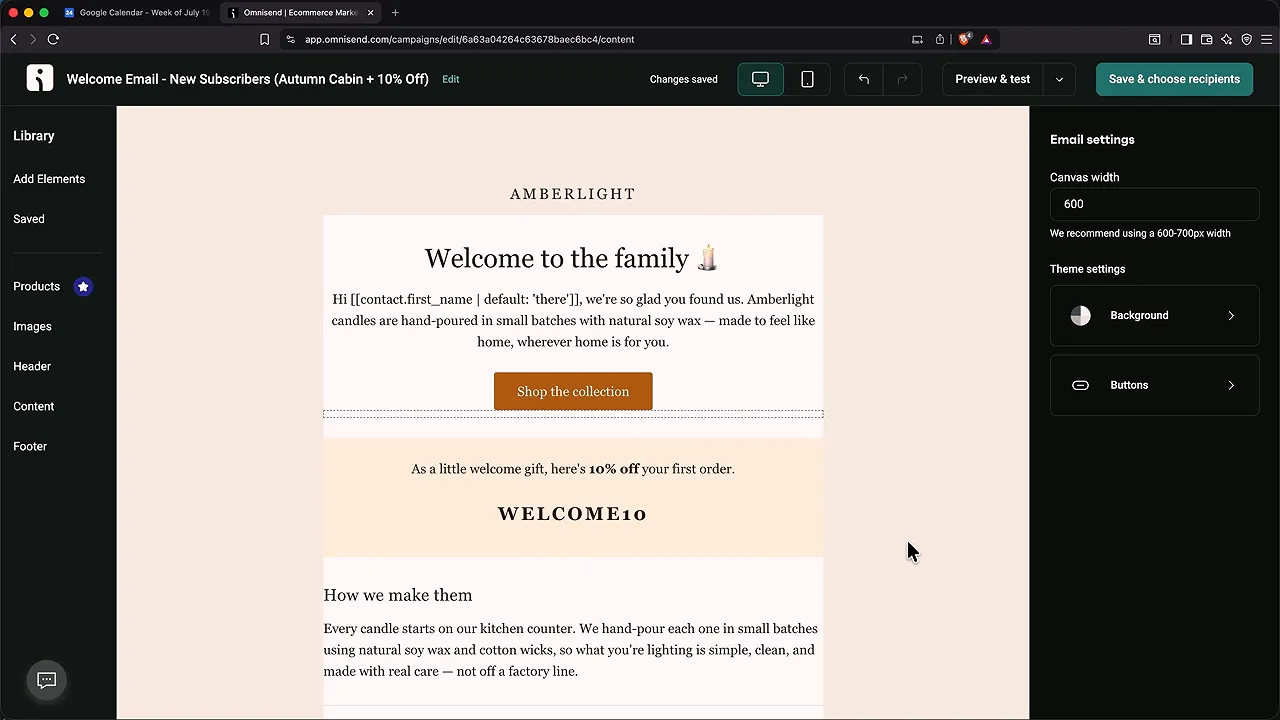
That is a meaningful step beyond generating copy: Claude created a real draft inside another platform. Once an account has campaign history, the same connection can also support analysis of campaigns and automations.
Omnisend is free to start. The promoted offer uses code MM30 for 30% off a paid plan for the first three months. Omnisend also described potential savings of up to 35% for stores switching tools and a migration service for lists, automations, and templates taking about five days. Check the offer details for your situation. The signup link is an affiliate link, which supports our work at no extra cost to you.
Install Skills for repeatable work
A Skill is like a recipe you install for Claude. It supplies detailed instructions for a particular kind of job, including the steps, format, and quality standard.
Instead of writing the same long set of instructions each time, you can call the Skill when you need it.
- Open Customize in the sidebar.
- Go to Skills and browse the library.
- Search for a relevant Skill.
- Open it and read the instructions.
- Install it.
- In a chat, type a forward slash to find and select it.
I installed Theme Factory, which provided ten visual themes for artifacts such as presentations and documents.
Then I asked for a short slide deck introducing Amber Light to a local store owner. After reviewing the theme options, I chose Golden Hour and asked Claude to make it resemble the website we had already created.
The presentation came back with a consistent visual style. A few icons needed improvement, but that is just another refinement request.
Installed Skills can be reused across chats, and Claude may apply one automatically when it fits the task.
Try this: connect one app you use regularly and ask one useful question about the information inside it.
Level 6: Let Claude Work While You’re Away
Use Cowork for a complete task, not just an answer
Up to this point, you have mostly been in a conversation. Cowork changes the pattern: give Claude a goal, provide access to the relevant materials, and let it work through the steps.
Cowork required a paid plan in my setup. In the desktop app, switch from Chat to Cowork, then choose a project or add the folder you want it to work with.
For this example, I connected a receipts folder and authorized changes there. The folder-access model limits this file workflow to the folders you choose rather than opening up your entire computer.
Start with manual approval
The approval setting determines how much freedom Claude has:
- Manually approve: review actions as Claude requests permission.
- Automatically approve: allow it to proceed with safety checks.
- Skip all approvals: remove those approval interruptions.
Start with manual approval. Learn what Claude actually does before loosening the controls. Automatic checks are not a substitute for understanding the workflow.
For a multi-step file task, I also prefer a more capable model and a higher effort level.
Turn receipts into an expense workbook
My first task was straightforward:
Read the receipts in this folder, extract each date, supplier, and amount, and create a clean expense spreadsheet.
Claude opened the files, extracted the details, and built the workbook. For longer jobs, the progress area can show a to-do list so you can see the stages it is working through.
Unlike a downloadable file that begins inside a chat, this workbook was created directly in the connected folder on my computer.
Then I followed up:
Rename the receipt files using the date, supplier, and reference number.
Claude asked for clarification about the naming pattern. After I selected an option, it renamed the receipts and updated the spreadsheet references to match.
Try this: choose one folder with one dull job, connect only that folder, and keep manual approval on for the first run.
Schedule recurring work
Inside Cowork, Scheduled lets you define a task once and set when it should run.
- Open Scheduled in the sidebar.
- Create a new task and choose to build it with Claude.
- Explain the work you want completed.
- Specify the frequency, timing, and output detail.
- Review the task definition and confirm the schedule.
For Amber Light, I requested a recurring report on candle and home-fragrance trends every Monday morning. After answering the setup questions, the task was scheduled for 6:30 a.m. local time on Mondays.
Before relying on it, use Run now to test it. This lets you check the output and handle permissions that might otherwise interrupt an unattended run.
You can edit the task later to change its instructions, frequency, project or folder, permission mode, and default model. I changed future runs to automatic approval after reviewing the workflow.
Other uses include industry-news summaries, a reminder list based on your calendar, or a monthly budget review. Cloud-run scheduled tasks can operate when your computer is off; verify the execution option and permissions for your particular task.
Beyond the Six Levels: Build with Claude Design and Claude Code
Cowork handles everyday work. Claude Code takes the same idea into building software: it can write code, run commands, and turn a plain-language brief into a working website or tool.
The word “Code” describes what it produces. You can still explain what you want in normal language. That does not remove the need for practice or review, but it makes building much more approachable.
Start with a business brief
Before designing the candle-shop website, I asked Claude to summarize the relevant business details from our work into a handoff document.
That gave the next tool a clear brief rather than forcing me to reconstruct the brand, products, and decisions from memory.
Then I opened Claude Design and requested a warm, cozy website with:
- A homepage.
- A shop page.
- An about page telling the brand story.
- The business details from the handoff document.
I selected a UI mock-up project type, a powerful model, and high effort. Claude Design asked follow-up questions about sample products, prices, the scent quiz, the shop layout, and the about-page content.
Answer those questions carefully. They are part of defining the design, not an obstacle to getting started.
Review the design before building
A chat Artifact is great for a simple page or small interactive idea. Claude Design provides a more purpose-built environment for reviewing and refining a larger visual project.
The initial site included typography, warm colors, a scent quiz, product sections, a lifestyle-image area, and an email signup form. Some controls let me adjust details directly, including the offer bar, quiz visibility, and displayed prices.
Where the design used image placeholders, I uploaded labeled product photos and asked it to replace them.
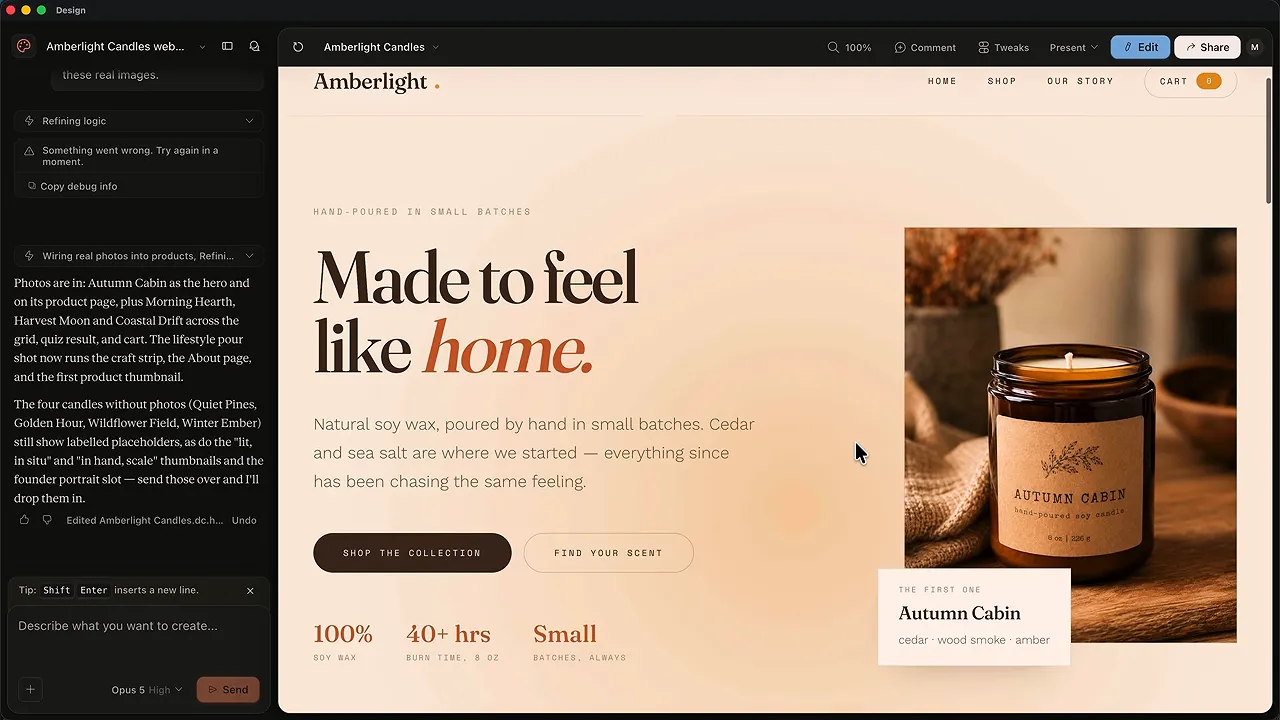
I could click through the quiz and interact with an add-to-cart design, including changing quantities. But an interactive mock-up is not the same as a complete e-commerce store.
Design establishes the appearance and interactions. Implementation connects them to real functionality.
Hand the design to Claude Code
Claude Design offered several sharing options, including publishing an Artifact, exporting a PDF, and downloading HTML files as a ZIP.
For this workflow, I used the option to send the project to Claude Code:
- Open Share in Claude Design.
- Find the additional formats and app options.
- Select Send to Claude Code and choose the local agent.
- Add instructions to turn the design into a functioning website.
- Copy the generated handoff prompt.
- In the desktop app, switch to Code.
- Create and select a dedicated project folder.
- Review the workspace-trust prompt, then paste the handoff instructions.
The generated prompt told Claude Code where the design files were and included the implementation request.
Review Claude Code’s permissions
Claude Code’s permission choices differ slightly from Cowork’s:
- Manual: asks before making changes.
- Accept edits: permits file edits while requesting permission for other operations.
- Plan: develops a detailed plan before implementation.
- Auto: evaluates whether an action can proceed or needs approval.
Use a more restrictive option on your first attempt, especially if the task modifies existing work. I used Auto for this dedicated website project, together with a powerful model and high effort.
The initial build took about 20 minutes. Larger projects are not instant, and a first build is rarely the final one.
Fix gaps with follow-up instructions
The first implementation had two clear gaps: the photographs had not carried across, and the email service was not connected.
I attached the photos again and asked Claude Code to use them and connect the signup form through the Omnisend integration.
It updated the images, converted oversized photos to smaller JPEG files, and added the email-integration work. It also supplied instructions for completing the connection with an Omnisend API key.
That last detail matters. Code can be prepared for an integration without every credential and service configuration being complete. The site still needed the final connection steps, any personal adjustments, and a real e-commerce backend such as Shopify.
What we had was a working local website, not a fully launched online store. Taking it public requires deployment and a domain. For that next stage, use the Claude website deployment guide. If you need the commerce side, the Shopify beginner’s guide covers the store foundation.
Build a Tool You Can Run Again Without Claude
There is another step beyond asking an AI to do a job: ask it to build a tool that does the job whenever you need it.
For Amber Light, I used the inventory workbook to build a reusable label generator.
Create a small app that reads inventory.xlsx and generates a print-ready PDF of candle labels. Each label should include the product name, scent, and the phrase hand-poured soy wax. Match the warm amber style in the attached label photo. Make it easy to run again after inventory changes, and put a launcher on my desktop.
I selected the inventory project folder and attached both the workbook and a reference photograph.
Claude Code built the tool and added a desktop launcher. Opening it generated a PDF of product labels from the inventory data.
Then I tested whether it was genuinely reusable:
- Open the inventory workbook.
- Change one product name to Dusk Sea Salt.
- Add a new product, Cozy Kitchen, with chocolate and cinnamon scent notes.
- Save the updated workbook as inventory.xlsx.
- Run the desktop launcher again.
Because I was editing in Apple Numbers, I needed to export back to Excel and replace the original workbook. Otherwise, the tool would still be reading the old file.
The next PDF reflected both the renamed product and the new candle.
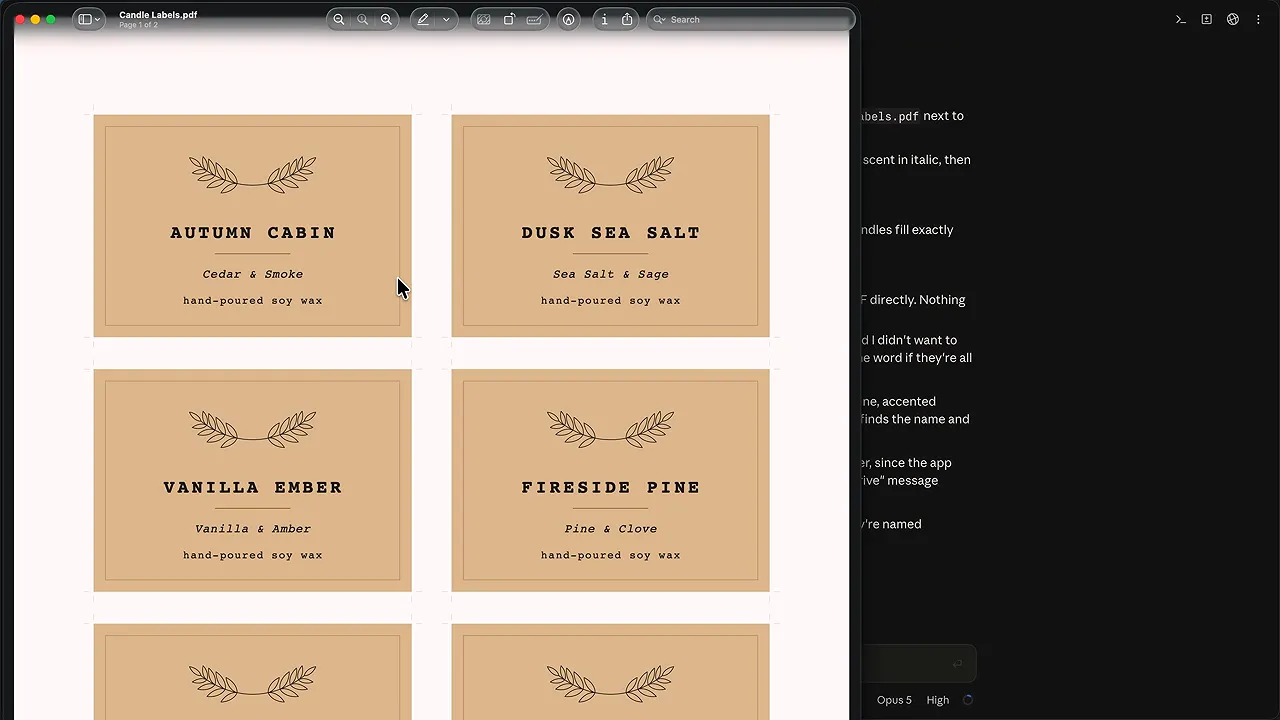
At that point, Claude was no longer doing the label-making task. A tool it had built was doing it locally. Running this particular tool did not require a fresh AI conversation or more Claude usage.
That is a powerful distinction: an assistant can complete a task, but software can make that task repeatable.
Claude Code can go further, including helping investigate computer issues, building backup workflows, or running multiple sessions on different parts of a project. Those are more advanced uses and take practice. You do not need to begin there.
The Skill That Connects Every Level
We started with a product description and ended with connected campaigns, organized receipts, a local website, and a reusable label-making app.
The underlying skill barely changed: provide context, describe the task, specify the result, and refine what comes back.
Choose the level just beyond what you already do comfortably. If you only chat, upload a real file. If you already use files, create a project. If your projects are working well, connect a useful app or try one tightly scoped Cowork task.
You do not need to master everything in an afternoon. You need one useful result, then the next one.


