Setting up Hermes Agent is the easy part. Knowing what to do with it afterward is where things get interesting.
If you treat it like a chatbot, it feels like another chatbot. Treat it like an assistant that learns your work, keeps its own notes, and has a computer to work on, and you can start taking real chores off your list.
My own agent runs more than 20 scheduled jobs, from bookkeeping checks to trip planning. You don’t need to start there. Start with one useful task, check its work, and give it more responsibility as it earns your trust.
This guide follows six levels: give your agent a home, reach it from your devices, connect your tools, teach it your preferences, automate a chore, and finally give it a small team. The setup route uses graphical interfaces, so you won’t need to write code or type installation commands into a terminal.
Some links are affiliate links. If you purchase through them, we earn a small commission at no extra cost to you. Prices, promotions, model names, and software interfaces can change, so check the current details before purchasing.
What You’ll Learn
- Run one server-based Hermes agent through your browser, Telegram, and the desktop app.
- Connect accounts gradually and use saved preferences and skills to improve repeatable work.
- Create paused automations with clear permissions, duplicate protection, and useful notifications.
- Match models to tasks and coordinate persistent teammates through a dependency-aware Kanban board.
Table of Contents
- What Is Hermes Agent?
- Level 1: Give Your Agent a Home and a Model
- Level 2: Reach Your Agent from Anywhere
- Level 3: Put Hermes to Work in Your Files and Accounts
- Level 4: Teach Hermes How You Like Things Done
- Level 5: Automate a Chore and Control the Cost
- Level 6: Give Hermes a Team and a Project Board
- Keep Your Hermes System Healthy
- Start with One Useful Job
What Is Hermes Agent?
Hermes Agent is free, open-source AI agent software made by Nous Research. You supply two things: a machine for it to run on and access to an AI model.
The model is the brain it borrows. Hermes is everything wrapped around that brain: tools, files, memory, skills, messaging connections, scheduled jobs, and delegation.
ChatGPT, Claude, and Gemini already cover plenty of useful ground. They can answer questions, work with files, and offer various memory, scheduling, and account-connection features. If those features meet your needs, you may not need a separate agent.
Hermes becomes useful when you want more control over how the whole system works:
- Model choice: Connect different model providers and use an inexpensive model for routine work and a stronger one for difficult analysis.
- Control over your installation: The agent software, working files, and saved procedures live on a machine you control rather than only inside a hosted chat service.
- Messaging where you already work: Connect Telegram, WhatsApp, Slack, Discord, and other supported platforms.
- Reusable knowledge: One agent can build up notes about your setup and procedures for your work, then use them across different projects.
Self-hosting the agent does not remove the limits or costs of whichever model provider you connect. It gives you control over the agent layer and the ability to change providers.
If you’re coming from OpenClaw, Hermes also supports an import workflow. Once it’s running, ask it to help import your existing configuration.
One request before you start: adapt the examples to something you actually care about. A task from your job, studies, or home life will teach you more than copying a trip-planning example you’ll never use.
Level 1: Give Your Agent a Home and a Model
Choose a machine that stays on
Your agent’s machine needs to be three things:
- Awake: Scheduled jobs and notifications only work while the machine is running.
- Separate from your personal files: An agent can run commands, install software, create files, and delete things. Your first experiments shouldn’t happen beside irreplaceable photos or sensitive work documents.
- Reachable: Your phone, browser, and desktop app should all connect to the same agent.
A small virtual private server, or VPS, fits that job. It’s a rented computer in a data center that stays on around the clock.
You can run Hermes on your own computer, but it will stop working when that computer sleeps. For a first agent, I recommend a separate server. Think of it as a practice workshop: somewhere you can experiment without putting your everyday computer in the middle of it.
Deploy Hermes with Hostinger’s template
I’m using Hostinger because its one-click Hermes template handles the beginner-unfriendly parts: installing the software, providing a secure web address and login, and giving you application-management controls.
The KVM 1 plan is the starting point used here for one agent. You can upgrade later if your needs grow.
- Open the Hostinger Hermes offer and choose a VPS plan.
- Select your billing period. In this setup, the additional discount required at least 12 months. Longer terms lowered the monthly equivalent, and the offer included a 30-day money-back guarantee.
- Untick the optional ready-to-use AI add-on. You’ll connect your own model provider separately.
- Check the discount, renewal details, and total charge before continuing.
- Create your account and complete payment.
- In the Hermes deployment form, choose or keep the admin username and save the generated password in a password manager.
- Click Deploy and wait until the application status shows Running.
The linked offer provides an additional 10% discount on eligible hosting purchases. Confirm the applied offer in your cart.
If payment takes you to a bare server dashboard instead of the Hermes setup form, use this recovery route:
- Open VPS in Hostinger and select Manage for your server.
- Go to Docker Manager → Catalog.
- Search for Hermes Agent and select it.
- Complete the deployment form and wait for the application to finish starting.
Docker Manager will show the Hermes application and Traefik, which handles the secure connection. You don’t need to configure either through a terminal for this route.
Open the Hermes dashboard
In Docker Manager’s application list, use the Open link in the Hermes access column. Bookmark that address, then sign in with the admin credentials you saved.
This is the control room. The main sections are:
- Sessions: Conversations from your connected devices and channels.
- Models: The AI models your agent uses.
- Cron: Scheduled jobs that run without you starting them manually.
- Skills: Built-in, installed, and learned procedures.
- Profiles: Additional agents you can create later.
- Kanban: The project board used in Level 6.
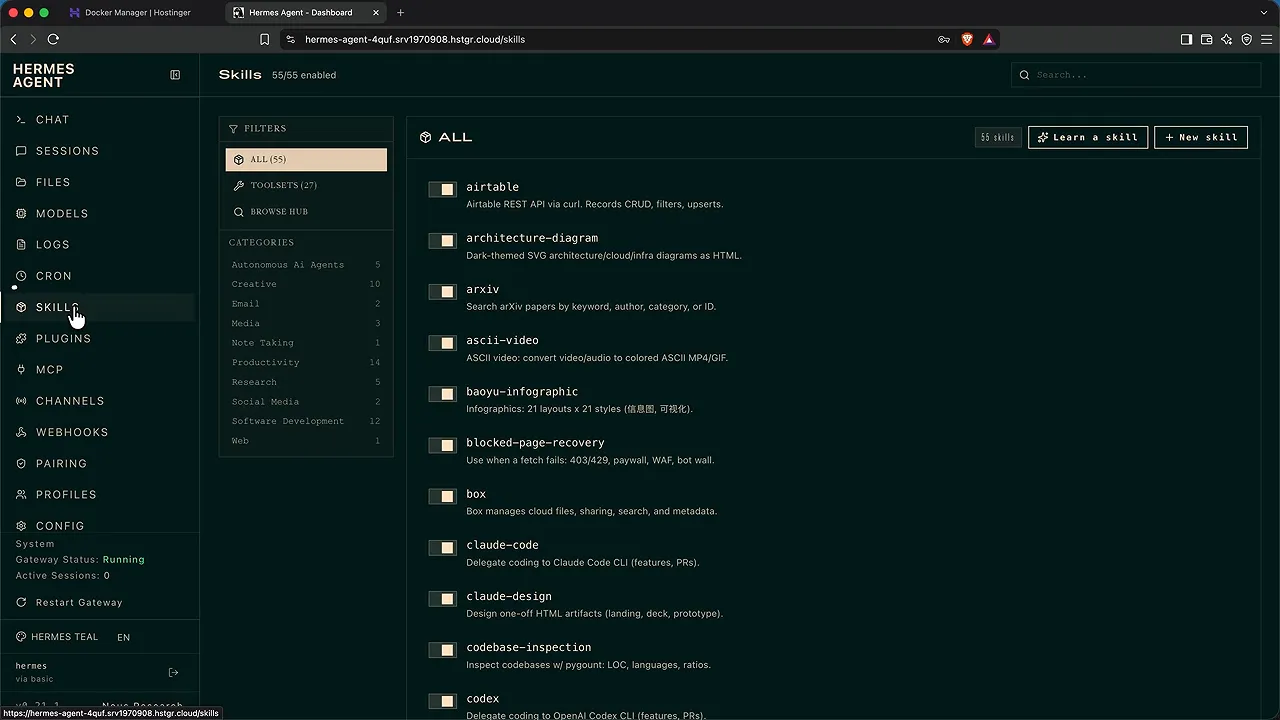
At this stage, a chat message may return No inference provider configured. That’s expected. The agent is installed, but it doesn’t have a model yet.
Connect Nous Portal
Nous Portal is the provider used here. It’s built into Hermes, so you connect by signing in rather than copying an API key. The account shown offers access to more than 200 models, along with services such as web search, page reading, browsing, image generation, and speech.
At the time of this setup, the $20 plan supplied $22 in credits, with unused credits rolling over. The Nous Portal introductory offer took $15 off the first paid month, bringing that first payment to $5 while retaining the $22 credit allocation. Check the current offer before subscribing.
- Create a Nous Portal account and complete the plan checkout.
- Open Billing to see subscription options and the credit top-up section.
- Return to Hermes and open Keys.
- Find Nous Portal, click Login, and approve the connection.
- Open Models and click Change beside the main model.
- Select an available DeepSeek Flash model, confirm the switch, and reload if prompted.
Start with a fast, inexpensive model that handles tools well. DeepSeek Flash is the example here; the exact version number matters less than choosing the current suitable option in your provider’s catalog.
A free provider tier can be useful for experiments, but an agent task may make dozens of calls. Standard free-tier limits can become frustrating quickly.
Now send a greeting, then ask the agent to describe its available tools. Depending on your setup, you should see capabilities such as browsing, terminal commands, files, web search, memory, scheduling, and sub-agent delegation.
You can add other providers later through Keys. Pay-as-you-go services such as OpenRouter are another route. Subscription-based connections can have tighter usage limits or terms restricting third-party use, so check the provider’s rules rather than assuming every chat subscription is interchangeable with API access.
Level 1 checkpoint: Ask three questions about your own topic. Get comfortable sending messages before connecting anything important.
Level 2: Reach Your Agent from Anywhere
Connect Telegram using the QR workflow
Telegram is an easy starting point because Hermes offers a QR-based bot-creation flow. You can send text, files, photos, and voice notes from one conversation.
Install the appropriate version from the official Telegram apps page, then keep your phone nearby.
- In the Hermes web dashboard, open Channels.
- Enable Telegram and restart the gateway when prompted.
- Wait for the gateway to return to Running. Refresh the page if the status does not update after a few minutes.
- Click Create with QR and scan the code with your phone.
- In Telegram, follow the hosted setup bot’s Create bot flow.
- Return to the setup bot conversation, rescanning the QR code if necessary, and select Connect this bot.
- Check that Hermes displays the bot name and your Telegram ID as an allowed user.
- Click Save and restart.
- Open your new bot conversation, tap Start, and send an actual message.
- Send
/sethometo make that conversation the delivery destination for scheduled-job results.
The allow list limits who can use your bot. Someone finding its username should not automatically gain access to your agent.
Telegram bot chats are not end-to-end encrypted. Don’t use them to send passwords or banking details. Telegram explains its different chat types in its security FAQ.
Understand shared memory versus separate conversations
Your browser conversation and Telegram conversation are normally separate threads. They connect to the same assistant, but the messages from one thread don’t automatically appear in the other.
Think of several email threads with the same assistant. The assistant can look up the others, but each thread has its own immediate context.
To move the active conversation to Telegram, enter /handoff in the browser chat and select Telegram. Hermes sends a handoff message so you can continue the same session there.
If a handoff causes trouble, ask the agent on Telegram to find and continue the earlier conversation from its history.
A few commands are worth knowing immediately:
/newstarts a fresh session./modelopens the model selector./handofftransfers the current session to another connected channel./sethomesets the destination for proactive messages.
Start a new session when you change topics. Keeping every unrelated request in one long thread gives the model more conversation history to process and can increase your costs.
Connect the desktop app to the same server
The web dashboard is good for administration. For everyday work, I prefer the desktop app: conversations in a sidebar, file attachments, and voice controls.
Download it from the official Hermes Agent website. On macOS, install it by dragging Hermes into Applications, then open it and complete the automatic installation steps.
The important part is connecting it to your existing server rather than configuring a separate local agent.
- At the provider setup screen, choose I’ll choose a provider later.
- Open Settings → Gateways.
- Set the connection mode to Remote gateway.
- Copy your Hermes dashboard’s base address from the browser, excluding page paths such as
/chat. - Paste that address into Remote URL.
- Click Sign in and enter your server’s Hermes admin credentials.
- Click Save and reconnect.
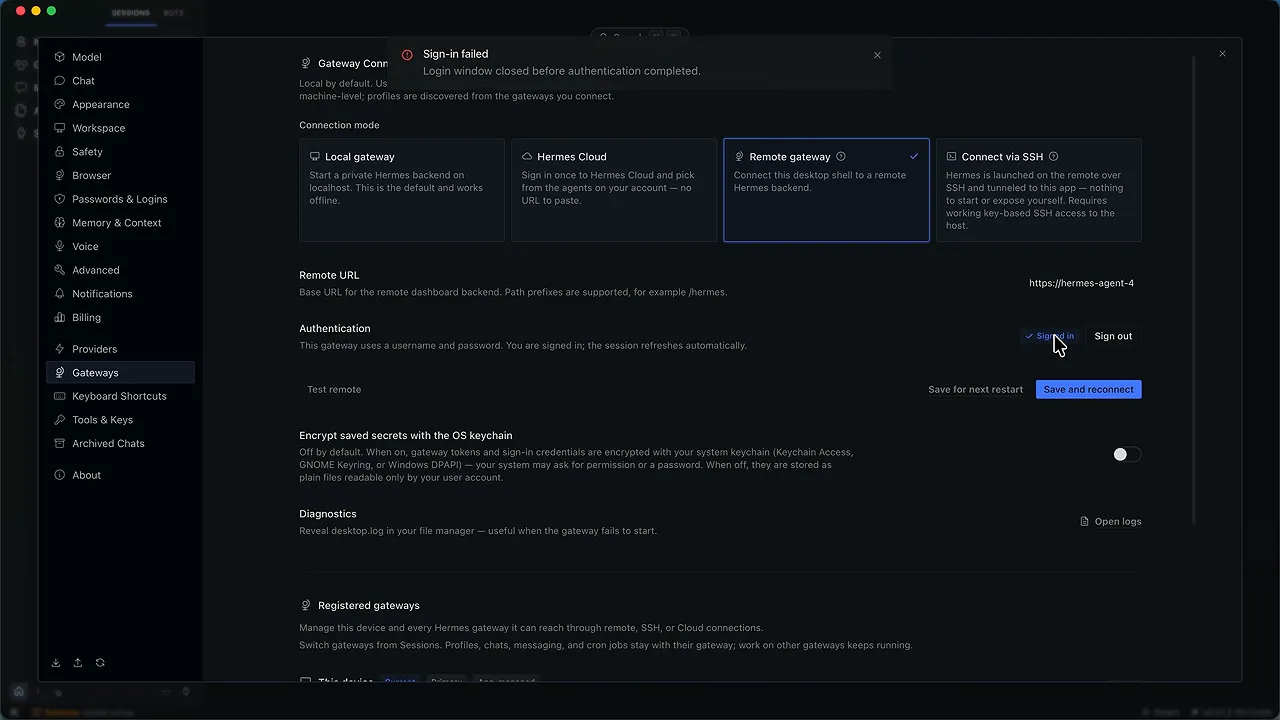
Test the connection by asking it to find your first Telegram message. If it retrieves the correct message, you have one server-based agent accessible through three interfaces: browser, Telegram, and desktop.
A Backend out of date notice means the desktop app is newer than the server software. They update separately, which we’ll cover later.
Use the desktop shortcuts and voice controls
On Mac, Command + Shift + H opens the heads-up display, or HUD: a floating interface you can position over your work. Its location supplies context for references such as “this” or “here.” Use the same shortcut or the exit control to return to the main app.
The desktop app also provides:
- Microphone dictation: Convert speech into a message you can review before sending.
- Spoken replies: Use the speaker control to have responses read aloud.
- Wake-word activation: Enable the option to activate listening with “Hey Hermes.”
- Voice conversation: Use the waveform control for back-and-forth speech.
For the common shortcuts used here, Windows generally uses Control where the Mac uses Command. For example, open settings with Command + comma on Mac or Control + comma on Windows.
Level 2 checkpoint: Send a message from your phone, then continue that work from the desktop app.
Level 3: Put Hermes to Work in Your Files and Accounts
Run a small research task first
Your agent has its own computer, so the files it creates can remain there for future work. That’s useful for projects, recurring jobs, and procedures that improve over time.
Start with a low-risk research request. For example:
Compare three leading standing desks. Give me one concise paragraph explaining the differences, with source links.
Hermes can search, open pages, read them, and assemble a recommendation. Follow its citations and check whether the answer actually supports your decision.
You can also ask it to create a few disposable test files, then explicitly ask it to delete those files. That makes an important distinction visible: you are dealing with software that can act on a computer, not just write about actions.
Build trust progressively
Risky commands and destructive actions can trigger approval requests. On desktop, you may see a Run control; Telegram can present an approval prompt. Depending on the request, you can approve once or for a session.
Explicitly asking the agent to delete particular files can count as permission, so don’t expect a second confirmation for every action you request.
My rule is progressive trust: give it a little access, inspect the result, and expand only when you’re comfortable. Approval prompts and written rules are useful, but don’t treat them as a reason to connect everything on day one.
Use separate accounts where possible. Keep your main email and anything involving money out of the initial setup.
Work with attached documents
Drag a PDF, spreadsheet, or screenshot into the desktop chat, or send a document or photo through Telegram.
For example, I gave Hermes an AI Index Report and asked it for a summary highlighting the three most important numbers. Then I asked it to turn the result into a short document for a colleague.
It returned a downloadable Markdown file. That works, but server-based files introduce a practical problem: you and the agent don’t automatically share a file system, and messaging platforms impose attachment limits.
A shared cloud folder solves that.
Connect Google Workspace with a separate account
Create a Google account specifically for the agent. You can share selected folders from your real account into that account without opening up your whole Drive.
In a new Hermes session, ask:
Help me configure the Google Workspace skill for Drive, Calendar, and Sheets.
Hermes should guide you through the required connection. It may also offer Docs, Gmail, and Contacts. Choose only the services you intend to use. The later receipt-filing example requires Gmail and Sheets.
If its clarification form gets stuck loading, send a screenshot and ask it to present its questions in plain text. That happened in my setup, and answering the same questions in the chat worked fine.
Create the Google Cloud project and credentials
This is the most tedious part, but the overall sequence is straightforward. Follow the instructions Hermes gives for your current version.
- Open the Google Cloud Console and create a project, such as Hermes Agent.
- Make sure that project is selected in the top bar.
- Open APIs & Services → Enabled APIs & services → Enable APIs and services.
- Find and enable each API you need.
The full demonstration enabled:
- Google Drive API
- Google Calendar API
- Google Docs API
- Google Sheets API
- Gmail API
- Google People API, which supplies Contacts functionality
When an API page offers a Disable API button, it is already enabled. Don’t click that button unless you want to turn it off.
Next, create the OAuth credentials:
- Go to APIs & Services → Credentials.
- Select Create credentials → OAuth client ID.
- If prompted, configure the consent screen first.
- Enter an app name, support email, and contact email.
- Select External as the audience for the setup demonstrated here, accept the required terms, and create the app configuration.
- Return to Credentials and create an OAuth client ID with Desktop app as the application type.
- Name it and download the JSON credentials file.
- If the app is in testing, open its Audience settings and add the Google account you’ll authorize as a test user.
Keep the credentials private. Supply the JSON file through your authenticated Hermes desktop session as instructed, not through a public chat or screenshot.
Hermes will generate an authorization link. Open it in your normal browser, sign in with the agent’s Google account, and review the requested permissions.
A warning that Google hasn’t verified the app can appear because you just created the app yourself. Continue only after confirming it is your own project and the permissions match what you intended to connect.
In the remote setup demonstrated here, the final redirect displayed a browser connection error. Hermes expected this: its instructions were to copy the complete final address from the address bar and return it through the authenticated chat to finish authorization. Follow the current instructions carefully, and treat that address as sensitive.
Once Hermes confirms the connection, test it before building anything on top. If a step fails, describe the error and send a screenshot with credentials and authorization details hidden.
Create an inbox and outbox in Drive
Ask Hermes to create a Drive folder named Hermes, with inbox and outbox subfolders, and return the link.
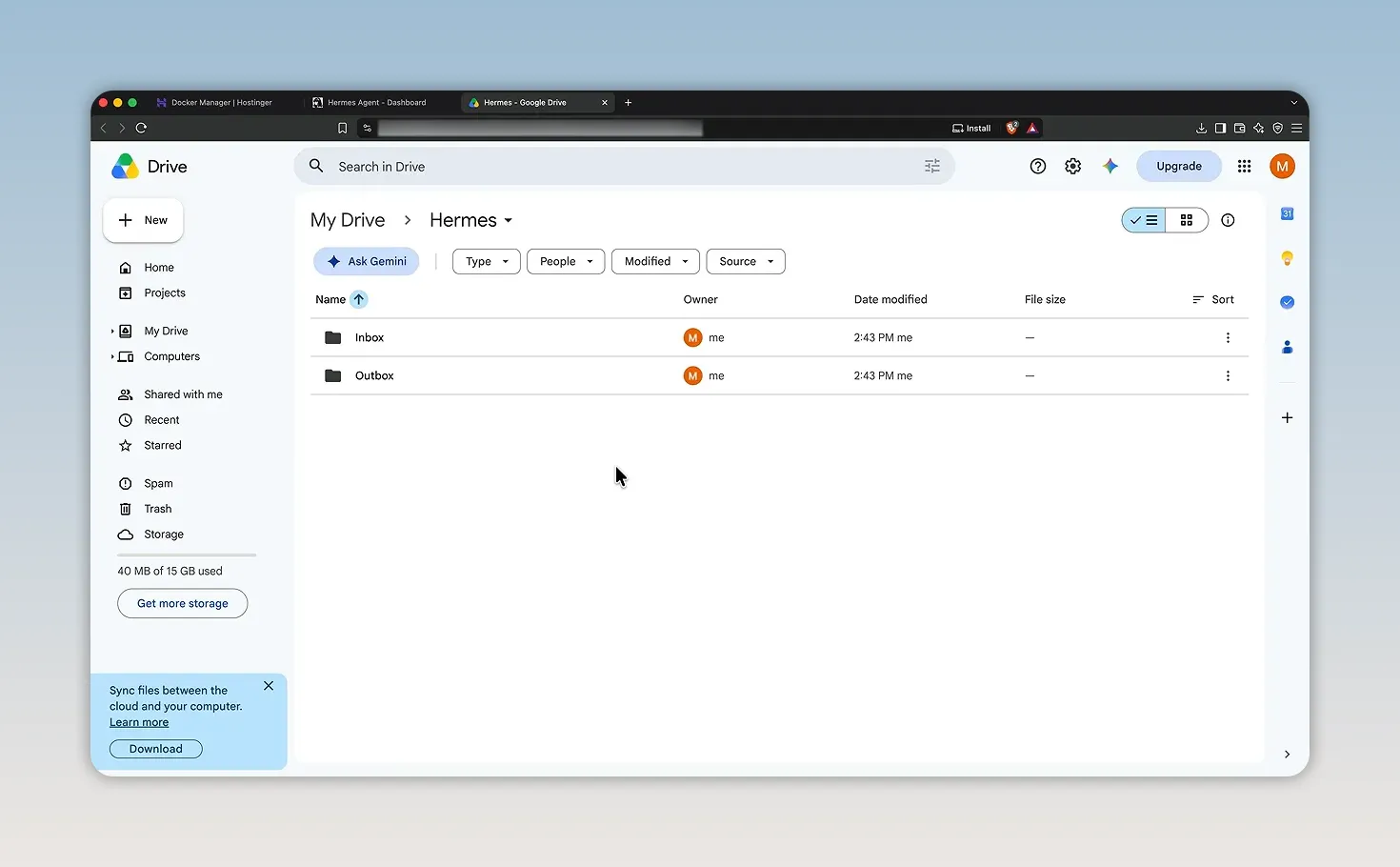
The convention is simple:
- Inbox: Files you want the agent to read.
- Outbox: Documents and other deliverables it creates for you.
Go back to a document-summary conversation and ask Hermes to save the summary to the Drive outbox and provide a link you can open from your phone. Check the sharing permissions before sending that link to anyone else. A link that works on your phone does not necessarily need to be publicly accessible.
Then upload a document to the inbox and ask for a five-bullet summary of the newest file. This tests whether the agent can find and retrieve a file, not just create one.
During this work, my agent also created a document-delivery skill and updated its setup notes. That’s the useful learning loop: it can save the process it just worked out instead of rediscovering it next time.
Inbox and outbox are only a starting point. As real work accumulates, ask it to create folders that match your projects and keep them organized.
Keep email in draft mode
If you connect Gmail, set boundaries before scheduling email work. The rule I use is:
Prepare the draft, leave it unsent, and tell me when it is ready for review.
Read and organize first. Let it draft once you trust that work. Autonomous sending is the last step, if you ever choose to allow it.
After editing a draft, ask Hermes to compare your changes with its version and remember the relevant preferences. That makes review more useful than simply fixing the text yourself.
Connect other applications with MCP
MCP, or Model Context Protocol, is a standard for connecting AI applications to tools and data. The official MCP introduction explains the underlying approach.
In the Hermes desktop app:
- Open Capabilities → MCP.
- Browse the available connections.
- Install the connection you want.
- Select it and click Authenticate.
- Connect the appropriate account and review its permissions.
Canva is one example in the catalog. Other possible tools include Notion, GitHub, customer databases, and accounting systems. You can disable a connection with its toggle or remove it entirely.
Once a tool is connected, give the agent a real task inside it. With Calendar, for example, I asked it to find the least busy afternoon the following week and add a 30-minute block for changing studio light bulbs. It inspected the calendar and created the event.
Level 3 checkpoint: Connect one tool you use regularly and give Hermes one small, verifiable job inside it.
Level 4: Teach Hermes How You Like Things Done
Save a preference, then test it in a new session
Start with something easy to judge, such as a short social post. If the result is too long, correct it plainly:
Make these posts much tighter. Use short sentences, no more than three paragraphs, and no headings or bullet lists. Remember this as my preference for short social posts.
Hermes can save that preference to its user notes. Test it with another topic in the same conversation, then open a completely new session and ask for a third post.
The fresh-session test matters. Following instructions in the current conversation is ordinary context use. Applying a saved preference in a new conversation is persistent memory doing its job.
Use Command + N on Mac or Control + N on Windows to start a new desktop session.
Understand the different kinds of memory
The AI model itself doesn’t carry a human-style memory between requests. Hermes supplies a fresh briefing containing instructions, relevant notes, and conversation context.
Picture a capable assistant who forgets everything between visits but keeps excellent notebooks. The notebooks let the assistant get back to work.
Hermes separates two important sets of notes:
- User profile: Your name, preferences, expectations, and how you want work delivered.
- Persistent memory: Working knowledge about the agent’s setup, connected accounts, conventions, and lessons learned.
Open Settings → Memory & Context in the desktop app to inspect the relevant settings. In the web dashboard, use Files → memories to find the Markdown memory and user-profile files. You can download them and read them in a normal text editor.
You can also ask the agent to correct or remove a particular note.
Keep these always-loaded notes short. They travel with requests, so they should contain essential information rather than every detail of every project. Hermes can search conversation history and load saved files or skills when it needs more.
Give growing notes an index
Once your agent has substantial working material, ask it to maintain an index:
Maintain a notes index that points to the file for each topic. Add a short pointer to that index in your persistent memory.
In my setup, it created /opt/data/notes_index.md. The exact location may differ, so ask it where it saved yours.
This keeps the permanent briefing small while giving the agent a route to more detailed material. Ask to see the index and check that its organization makes sense.
Turn a successful workflow into a skill
Memory holds facts and preferences. Skills hold procedures.
A skill is a recipe for a particular job. The agent can load it when needed rather than carrying the complete procedure into every conversation.
Return to the writing conversation and ask it to save the editing workflow as a skill named concise writer.
Open Capabilities → Skills to inspect it. Skills created through experience or your instructions appear with a Learned label. You can open the skill and read its instructions.
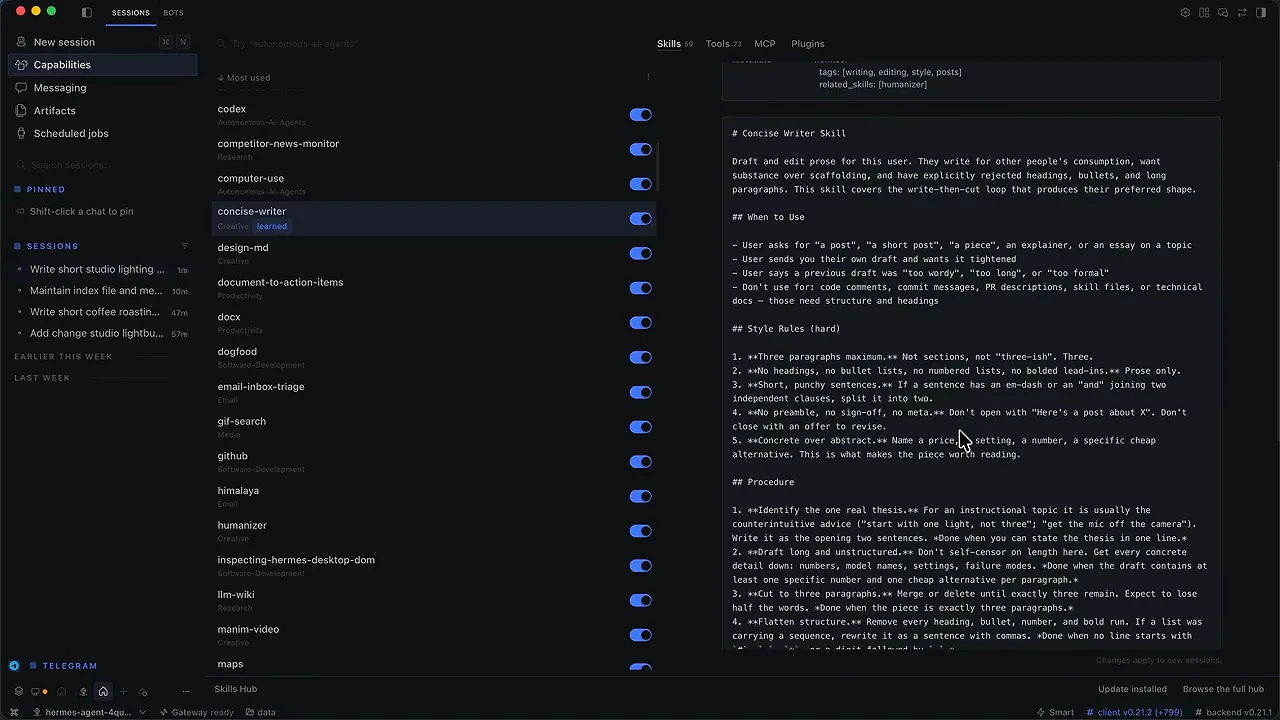
Hermes can also update procedures as circumstances change. For example, if a supplier redesigns a pricing page, the agent may work out a new retrieval process and revise its skill. That’s a capability worth checking through actual results, not a reason to stop reviewing important work.
Learn from a document or install an existing skill
Attach a procedural PDF and use /learn with a request to turn it into a reusable skill. You can also supply a web page link.
I used an SEO Starter Guide. For your work, a company style guide or other repeatable process document may be more useful.
The Skills page also includes installable skills and a Skills Hub containing community contributions.
Read third-party skills before trusting them. They are instructions written by someone else. Hermes scans hub content for dangerous instructions, but scanning is not a guarantee. Stick to trusted sources while learning, and ask the agent to review unfamiliar instructions before using them.
Set temporary or permanent personality preferences
The /personality command offers session-level presets such as helpful, concise, creative, teacher, and pirate. Choose None to return to the base behavior.
For lasting behavior, Hermes uses SOUL.md. Memory describes what it knows about you and your setup; SOUL describes how it should behave.
For example:
Update SOUL.md to use a calm, direct tone. Don’t finish replies with follow-up questions unless I have asked you to present options.
Keep permanent personality instructions short and specific. Then test them with a normal request.
Level 4 checkpoint: Save one useful preference, correct one recurring mistake, or turn a document you repeatedly explain into a skill.
Level 5: Automate a Chore and Control the Cost
A lot of AI automation gives you more to read: another briefing, digest, or review. I’d rather start with something that leaves less work behind.
Build a receipt-filing clerk
My example is filing receipts. Purchase confirmations and invoices arrive in the agent’s separate Gmail account, and the useful details need to end up in a spreadsheet.
A good automation request specifies the schedule, inputs, destination, duplicate protection, permissions, and notification behavior.
Here is the structure to give Hermes:
Create a receipt-filing workflow using the agent’s Google account. Make an Expenses spreadsheet with a Receipts tab if one does not already exist.
Run daily at 7 p.m. Search the previous two days of Gmail for purchase receipts, order confirmations, and invoices that do not have the files label.
Append one row per receipt with date, vendor, amount, currency, category, and email ID. After filing an email, apply the files label so future runs can identify it as processed.
Pre-approve adding spreadsheet rows and applying that label for this recurring job. Do not send, reply, forward, delete, or archive email.
Send a one-line Telegram result with the number filed, the monthly running total, and a spreadsheet link. Create the recurring job paused so I can review it before enabling it.
Three parts are doing important work here:
- Bounded actions: The permitted changes are adding rows and labels, not sending or deleting messages.
- External state: The label and stored email ID let later runs recognize processed items.
- Paused deployment: You inspect the job before allowing it to run repeatedly.
Scheduled runs do not automatically inherit the previous run’s full conversation. They need a durable record of what has already happened.
My initial setup took about ten and a half minutes. Hermes created the spreadsheet, processed the test receipts, and applied the labels.
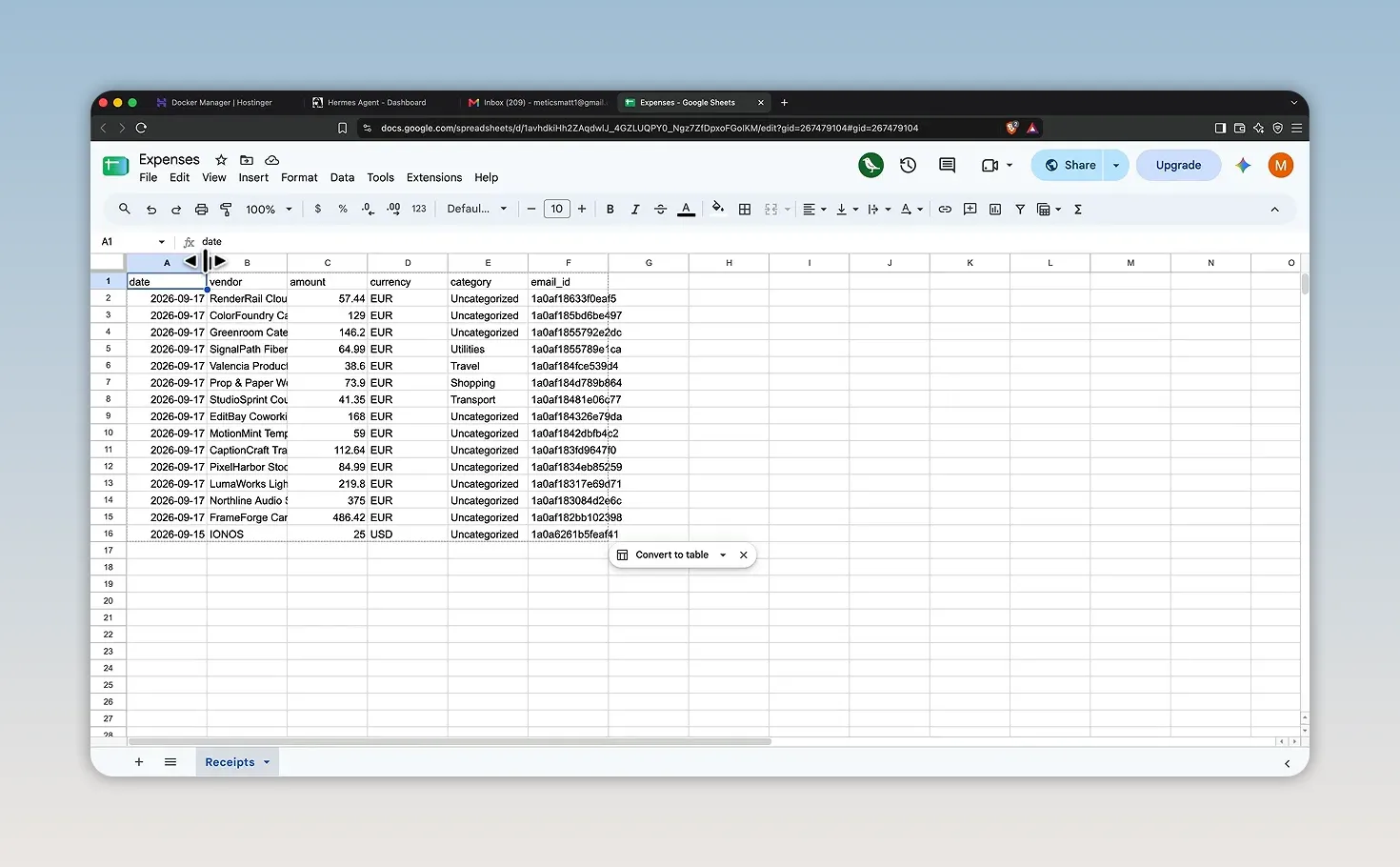
Paused does not necessarily mean nothing has been tested. In this setup, Hermes performed an initial test while leaving the recurring schedule paused. Check the spreadsheet and inbox before assuming the first scheduled run will be the first action.
Open Scheduled Jobs in the desktop app or Cron in the dashboard. Read the saved job, confirm its behavior, and choose Resume when you’re satisfied.
Trigger now runs a manual test. If Hermes reports that a job is already running or claimed by another scheduler, inspect its status and results before repeatedly triggering it.
Let repeatable work become a script
In this example, Hermes built a deterministic script for the recurring work. That means it can follow a fixed process rather than asking a language model to reason through every step on every run.
This can substantially reduce recurring token use. It does not mean every automation will become a script, or that every part of every run is free. Inspect what your agent built and compare it with provider usage.
Other good first chores include updating a tracker from confirmation emails, adding preparation blocks before meetings, or creating a weekly folder with the right notes inside.
Create a monitor that only interrupts you for changes
The next useful pattern is monitoring something without generating a message every time it checks.
I asked Hermes to monitor Barcelona-to-London flight-price trends, create a reusable checking skill, remember what it had already reported, and notify me on Telegram only when something new appeared. I also asked it to use the concise writer skill for those messages.
Because the request described an outcome rather than a detailed implementation, setup took roughly 30 to 45 minutes. Hermes researched the approach, built the process, saved state, and scheduled a check every six hours. This also became a script-based job in my setup.
The useful requirement is not simply “check this regularly.” It’s “keep track of what you have already told me, and only interrupt me when there is a reason.”
Choose the model for the job
Models are workers you can hire by the task. You wouldn’t pay your most expensive specialist to sort routine mail.
- Routine work following a clear procedure: Start with a capable, inexpensive model.
- Planning, analysis, or consequential judgment: Use a stronger model.
- Poor results: Try a stronger model or a higher reasoning setting before assuming Hermes itself is the problem.
Don’t choose purely on the lowest price. An inexpensive model that consistently makes confident mistakes is not a bargain.
In Nous Portal, open Resources → Models to compare current input and output prices and any promotions. As an illustration, the catalog shown priced DeepSeek V4 Flash at $0.07 per million input tokens and $0.14 per million output tokens, while a flagship option was listed at $10 input and $50 output. Those figures are examples from this setup, not permanent prices.
In the desktop app, use the selector beside the message box to change models and the adjacent control to change effort. In Telegram, use /model and /reasoning.
Higher effort may help difficult work, but maximum effort on a premium model can be expensive. It is usually unnecessary for everyday chat.
Avoid model-switching surprises
You can change models during a conversation, but the new model needs to process the existing context. For a large job, starting a fresh thread on the intended model is often a cleaner choice.
Also inspect the model configuration on scheduled jobs. In the behavior demonstrated here, an LLM-based job created under one default model could refuse to run after that default changed rather than silently switching to another model.
Open the job’s menu, choose Edit cron, and pin it to the model you want. Script-only jobs may not show an LLM selector because they do not use a model for the actual task.
Set a fallback chain
Providers have outages and accounts hit limits. Give Hermes alternatives before that happens during an overnight job.
A useful pattern is:
- Your preferred primary model.
- A capable model from a different company.
- A cheaper, reliable last-resort model.
Ask Hermes to configure that chain using exact model names available in your account. You can also manage fallbacks in the model settings.
Don’t copy someone else’s chain without thinking about the work. A fallback for writing drafts may be unsuitable for a task requiring difficult analysis.
Use mixture of agents selectively
The /moa command sends a request to multiple reference models and uses an aggregator model to combine their responses.
Before using it, open model settings and configure:
- The reference models that will each answer the request.
- An available aggregator model that will assemble the final reply.
If /moa returns a provider-configuration error, check those settings. Having a working main chat model does not necessarily mean mixture of agents has been configured.
This is useful when a decision deserves several opinions. It also means paying for several responses and the aggregation step.
My example asked multiple models to assess a fallback chain. It took about 26 minutes. The recommendation was illustrative, not a permanent ranking of the best models.
Check what Hermes actually costs
Your VPS charge is relatively predictable. Model usage is the variable bill.
In Nous Portal, open Account → Usage. You can inspect credit spend, input tokens, output tokens, cache reads and writes, and request counts. Filter by date or model to find what caused a spike.
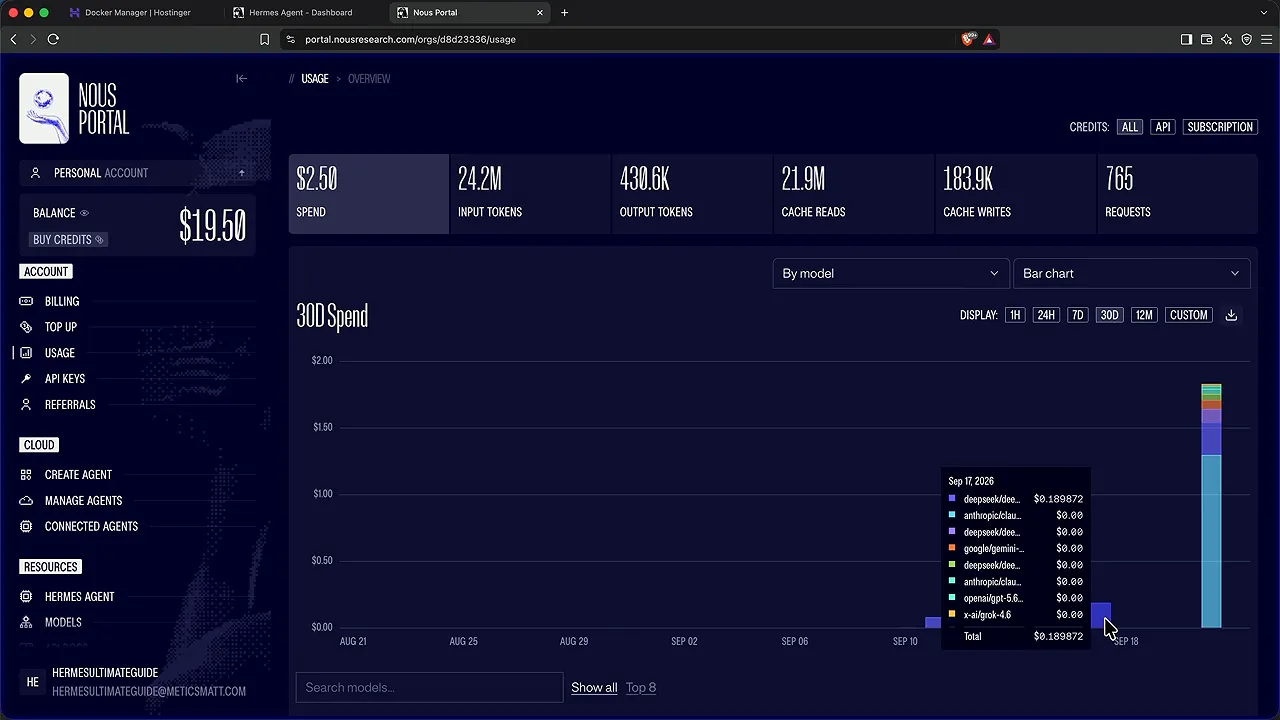
Input is more than the sentence you type. Requests can include the agent’s instructions, memory, tools, and conversation history. Outputs are the model’s responses. Both contribute to usage.
Caching can reduce the cost of repeatedly processing unchanged context. In the provider setup shown, that happens automatically for eligible repeated content.
The difference between models was obvious in my usage dashboard. One day’s inexpensive-model work cost a little over eight cents. Calls to a premium reference model during the mixture-of-agents task alone cost about $1.30.
That is not a promise about your bill. It’s a reason to inspect your own usage and match the model to the task.
Level 5 checkpoint: Pick one recurring chore that ends in a spreadsheet, folder, or calendar. Create the job paused, review its implementation and test results, then enable it.
Level 6: Give Hermes a Team and a Project Board
Start with temporary sub-agents
The simplest team needs no extra setup. Ask the main agent to divide a job among helpers and return one combined result.
For example, ask it to plan a three-day Lisbon trip from London, assigning one sub-agent to activities, one to authentic local food, and one to flights.
The helpers work in parallel while the main agent coordinates them. You can request specific models for particular helpers rather than running all of them on the same model.
These sub-agents are temporary. They exist for that job, then finish.
Create persistent teammates with profiles
A standing teammate is a profile: a separate agent on the same server with its own memory, skills, personality, and model configuration. The desktop app presents profiles as bots.
Before creating them, ask your main agent for one-sentence job descriptions for a researcher, writer, and reviewer. Tell it that the descriptions must clearly distinguish which tasks belong to each role.
That wording matters because the project board uses the descriptions to route work.
- Switch from Sessions to Bots in the desktop app.
- Click the plus control and choose New bot.
- Choose an avatar and enter a name, title, and job description.
- Open Advanced to set a provider and model where appropriate.
- Create the bot and repeat for the other roles.
If you leave advanced options unchanged, the new bot inherits the default profile configuration used by this setup. Review those settings rather than assuming every teammate needs identical access.
I gave the researcher a stronger model because evaluating sources and making judgments was its main job. The writer and reviewer used cheaper models. Using different models also offers different perspectives, although you should still review important final work.
Enable the Kanban board
Open Capabilities → Plugins and enable Kanban. It appears in the desktop sidebar. In the web dashboard, it is under Plugins near the bottom of the navigation.
Kanban looks like a familiar project board, but its cards can be executed by agents rather than simply waiting for a person to move them.
The main states are:
- Triage: Turn a rough request into defined work.
- To do: Wait for prerequisite cards.
- Ready: The task can start.
- Running: A teammate is working on it.
- Blocked: Progress needs an answer or external event.
- Review: Another agent checks the result.
- Done: The work is complete and dependent tasks can proceed.
- Scheduled: Work is waiting for a specified time.
Some states are controlled by the board, so you cannot manually drag a card into every column. In the desktop version shown, adding a first test task also made the columns visible.
Set up notifications before leaving it alone
A quiet board sounds good until a task sits blocked for an hour and you assume it is still working.
I use two approaches:
- Create cards through Telegram’s
/kanbancommand when I want automatic subscription to their notifications. - Write explicit completion and blocked-task notification instructions into the task itself.
For a simple Telegram test, the command used here is:
/kanban create "Test task" --assignee defaultThe title is the only required argument; the assignee option explicitly sends this example to the default agent. Keep the two hyphens separate if your keyboard tries to turn them into a typographic dash.
The command may not appear in Telegram’s common-command suggestions. You can still type it directly. Ask Hermes for current syntax if your version differs.
If the new task doesn’t appear in the desktop app immediately, refresh with Command + R on Mac or Control + R on Windows.
Give the board a complete outcome
For a real project, define what you need delivered rather than dictating every internal step.
My Lisbon project asked for:
- A five-day trip for two people in early spring on a mid-range budget.
- Flight research from London, three neighborhoods to stay in, and three day-trip options.
- Real prices and direct booking links for purchases.
- A budget spreadsheet in the Drive outbox, with item, price, booking link, booked status, and actual amount paid.
- A day-by-day itinerary.
- Placeholder calendar events for travel days and time-specific activities.
- A review for errors and missing prices.
- Telegram messages when complete or when an answer from me was required.
Create that as a new board task. It enters Triage while the orchestrator figures out the subtasks and dependencies.
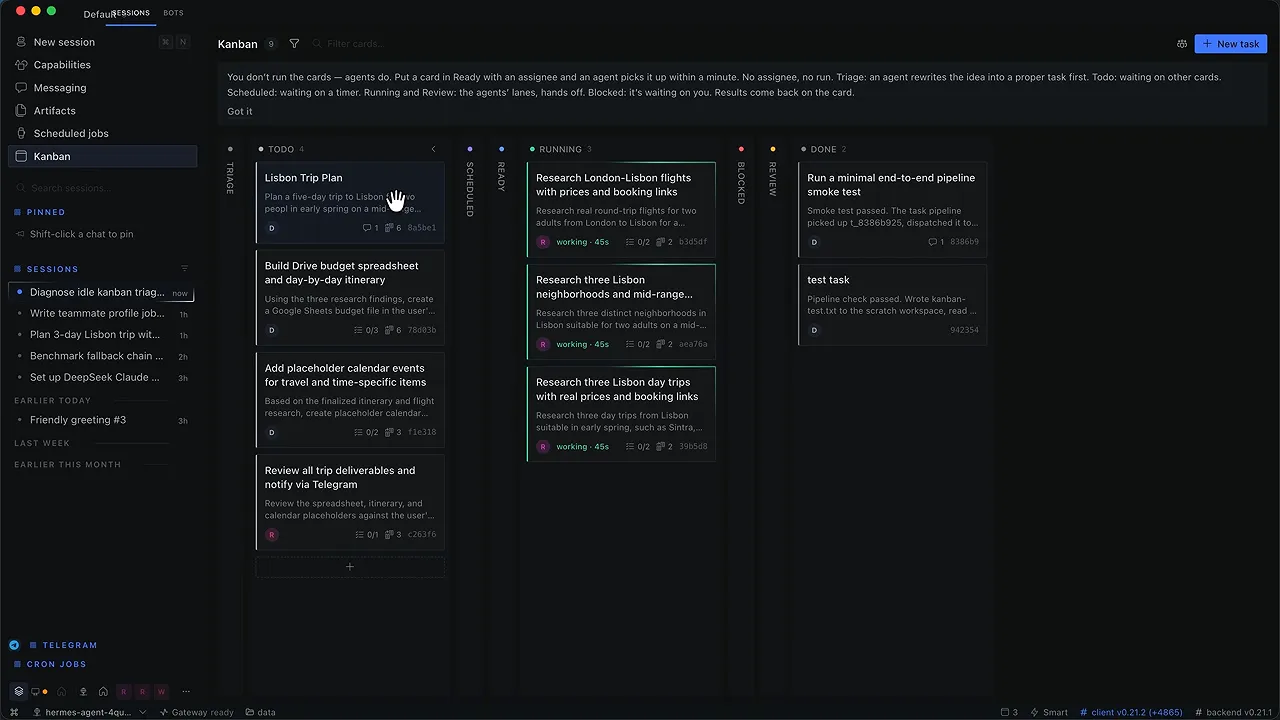
In my example, flight, neighborhood, and day-trip research ran concurrently. Other cards waited for those results. Research went to the researcher profile, review went to the reviewer, and some tool-based work stayed with the default agent.
Open a card to inspect its assignee, prerequisites, activity history, and comments. You can leave additional notes there, and the working agent and orchestrator can record their own progress.
That dependency structure matters. A calendar event should not be finalized before the relevant dates are known, and a review should not start before there is something to review.
Use scheduled jobs to keep long-running projects current
A board task runs and ends. It does not sit indefinitely checking an inbox for the hotel’s reply.
When a teammate cannot proceed, it can move a card to Blocked and explain why. A separate scheduled job can periodically inspect blocked cards, check whether their external condition has been met, and move them back to Ready. If the task genuinely needs you, that job can message you instead.
My own board-checking job runs every half hour. A simpler trip-specific maintenance job can run each morning and:
- Look for new booking confirmations.
- Update actual amounts paid in the trip spreadsheet.
- Mark the relevant items as booked.
- Replace matching placeholder calendar events with confirmed events.
- Include confirmation numbers in the event descriptions.
- Apply a trip label so the same email is not processed twice.
- Send a short Telegram update describing the changes.
Create that job paused too. Replacing calendar events includes deletion, so check that it can only modify the matching placeholders you intended.
Adding guests to calendar events can send real invitations. Only include a guest when you intend to contact that person, and inspect this behavior before enabling the schedule.
The general pattern is simple: the board completes the project work; a scheduled job keeps the project current and alerts you when needed. The same structure can support reports, product descriptions, content calendars, or research lists.
Keep Your Hermes System Healthy
Use the same troubleshooting order
If the agent goes quiet, check these in order:
- Credits and rate limits: Look at the last error message and your model provider’s account.
- Gateway: Confirm it is running and restart it if necessary.
- Logs: Open Logs in the dashboard and filter for errors instead of reading every line.
If those checks do not resolve the issue, restart the Hermes application from Hostinger’s Docker Manager using the application’s three-dot menu.
When asking for troubleshooting help, explain what you expected, what happened, and any error text. Screenshots help, but remove passwords, credentials, and sensitive account information first.
Back up before major changes
Open System in the web dashboard. It includes system status, gateway controls, and backup options.
Create a backup before a significant configuration change. The same section lets you restore from a downloaded backup file.
Update the server and desktop app separately
- Server backend: In Hostinger Docker Manager, open the Hermes application’s three-dot menu and choose Update.
- Desktop app: Open Settings → About, check for an available update, and install it.
Updating one does not automatically update the other. That distinction explains many backend-version warnings.
Check achievements after you have used it for a while
The web dashboard also has an Achievements page under Plugins. The version shown includes 60 badges across areas such as autonomy, debugging, and tool use, with tiers from Copper to Olympian and some hidden achievements.
It’s a fun way to see which capabilities you have actually exercised. The useful measure is still the work the agent has taken off your hands.
Start with One Useful Job
You don’t need a team of agents on your first afternoon. You need one task you can explain, one result you can check, and clear boundaries around what the agent may change.
Give Hermes a separate place to work. Connect one useful tool. Teach it how you want the result delivered. Then turn that successful process into a skill or a carefully reviewed scheduled job.
Once it is reliable at the small thing, hand over the next one. That’s how an interesting chatbot becomes a useful assistant.
Made with VideoToBlog using The Ultimate Beginner’s Guide to Hermes Agent


