A useful AI agent should do more than answer questions in a browser tab. It should check the things you care about, message you when something changes, and remember how you like things done.
That is what we’re setting up with Hermes Agent. You won’t need to write code or type terminal commands. If you can use a browser and a messaging app, you can follow this process.
There are five core steps: give Hermes somewhere to run, connect an AI model, link your phone, create its first scheduled job, and teach it a preference it can remember across conversations.
Hermes itself is free. The two costs are the server it runs on and the AI model it uses. We’ll keep both straightforward, then look at where to check your spending.
Some links are affiliate links. If you purchase through them, we may earn a commission at no extra cost to you.
What You'll Learn
- Deploy Hermes on a separate VPS so scheduled jobs can run while your computer is off.
- Connect an inexpensive AI model and use Telegram to receive scheduled notifications.
- Create a watcher that reuses a skill and avoids sending the same results repeatedly.
- Save clear preferences to memory and test them in a new conversation.
Table of Contents
- Step 1: Give Hermes an Always-On Home
- Step 2: Connect an AI Model Through Nous Portal
- Step 3: Connect Hermes to Telegram
- Step 4: Give Hermes Its First Scheduled Job
- Step 5: Teach Hermes a Preference It Can Remember
- How Much Does Hermes Agent Cost to Run?
- Start With One Job That Saves You Effort
Step 1: Give Hermes an Always-On Home
Your agent needs a computer to live on. For your first setup, I recommend a VPS, or virtual private server. Think of it as a computer in a data center that stays on while your laptop is closed.
The machine running your agent needs three things:
- It must stay awake. Scheduled checks and overnight messages only work while the machine is running.
- It should be separate from your personal files. An agent can run commands, install software, create files, and delete them. While you’re learning, keep that activity away from your photos, passwords, sensitive work documents, and logged-in banking sessions.
- It must be reachable. Your phone, laptop, and tablet should all be ways into the same agent.
Think of the server as a practice workshop. It is somewhere you can experiment without putting everything you own next to the machinery. If you break the setup badly, you can rebuild it.
You can install Hermes on your own computer instead. Just understand the trade-off: it only works while that computer is awake, and its file operations happen on that machine. For a first agent, renting a separate server is the simpler starting point.
Why I’m Using Hostinger
Plenty of companies rent out servers, but many routes leave you installing Hermes through a terminal. We’re using Hostinger because its one-click Hermes template handles that initial setup.
The template installs Hermes, provides a secure web address and login page, and includes management features such as backups, updates, and a restart button. You can do the setup through your browser.
The Hostinger offer used here provides an additional 10% discount on eligible plans, on top of applicable promotions. Check the price and terms displayed at checkout.
Choose Your VPS Plan
- Open the Hermes hosting page and select Choose plan.
- Select KVM 1. This is the smallest plan recommended here for running one agent. You can upgrade later without reinstalling everything.
- Choose your registration period. Longer terms have a lower monthly equivalent, but you pay for the selected term. The discount shown in this setup required at least 12 months.
- Untick Ready-to-use AI. That adds a separate AI service we don’t need because we’ll connect our own model provider.
- Leave the remaining optional add-ons unchanged, confirm the discount, and continue.
- Create your account using Google, GitHub, or email, then enter your billing and payment details.
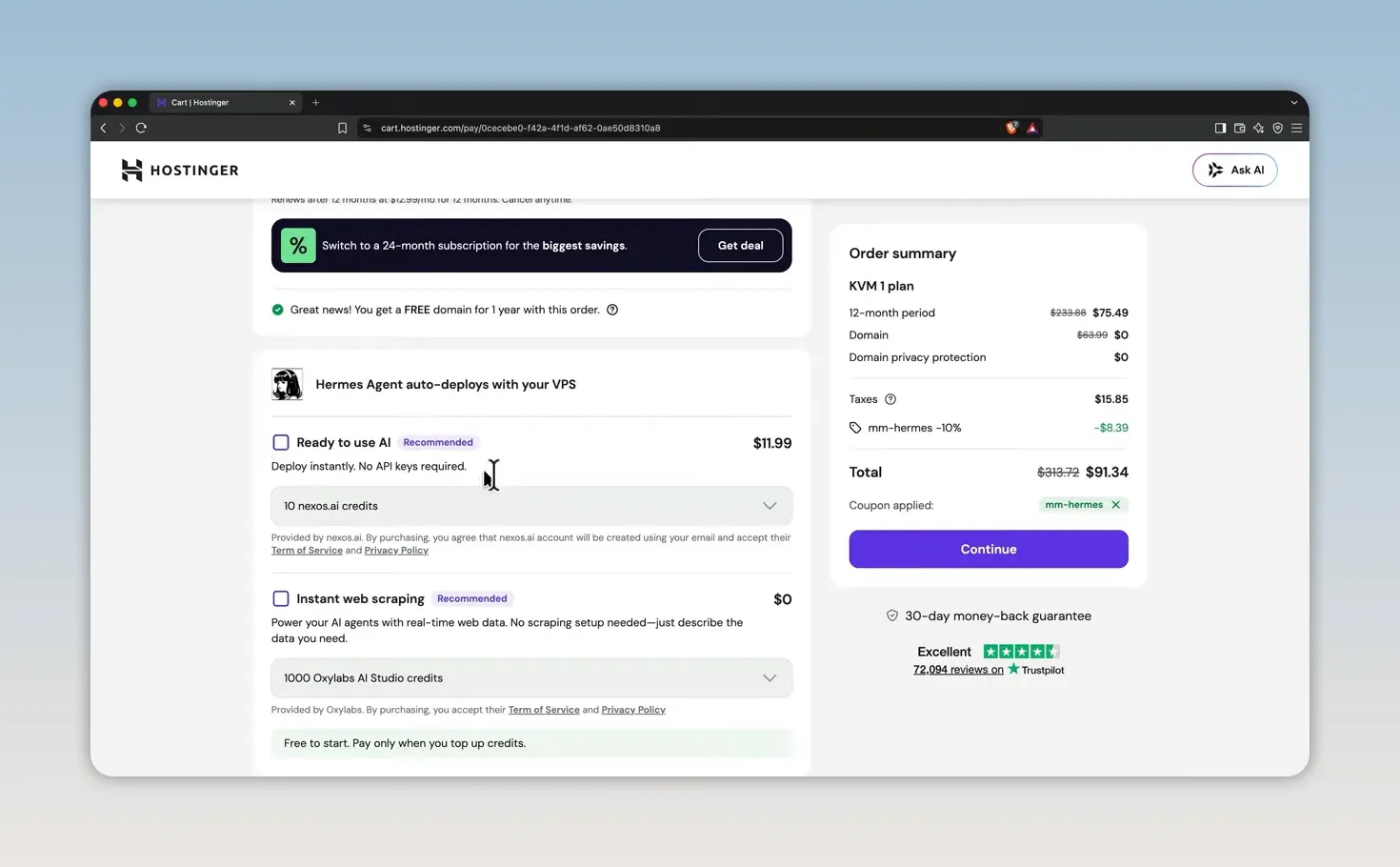
The checkout in this setup included a 30-day money-back guarantee. As with pricing and promotions, confirm the current conditions before purchasing.
Deploy Hermes and Save Your Login
After payment, Hostinger should take you into the Hermes setup form. You’ll receive an admin username and password.
- Keep the default username or choose your own.
- Reveal the admin password using the eye icon.
- Save the username and password in a password manager, not an unsecured text file.
- Select Deploy.
- Wait until the Hermes application shows a green status and says Running.
Deployment can take a few minutes. If you reach the dashboard while the application is still deploying, give it time to finish.
Under Docker Manager → Applications, you should find Hermes Agent and Traefik, which handles the secure connection to the server. You don’t need to configure those components manually for this route.
Open the Hermes Dashboard
In Docker Manager, find Hermes Agent and click Open under its access column. Bookmark the login page, then sign in with the credentials you saved.
This dashboard is your agent’s control room. A few areas matter right away:
- Chat: The place to talk directly to your agent through the browser.
- Sessions: Your conversations across devices. Separate conversations can use the same saved memory.
- Models: Where you choose the AI model that does the thinking.
- Cron: The scheduler that lets Hermes run jobs without waiting for a message from you.
- Gateway: The component that connects Hermes to messaging platforms.
If you send a message now and get No inference provider configured, nothing is broken. Hermes is installed, but it doesn’t have an AI model yet.
Software changes quickly, so a button may move or have a slightly different label. Follow the purpose of each step rather than expecting every screen to look identical.
Step 2: Connect an AI Model Through Nous Portal
The model is the brain your agent borrows. Hermes provides the agent framework, but you need a provider account to supply the intelligence.
For this setup, I’m using Nous Portal, made by the same team behind Hermes. Its built-in login connection means you don’t need to copy API keys between services.
At the time of this setup, Nous Portal offered access to more than 200 models, along with services for web search, reading web pages, image generation, browsing, and speech.
The plan shown cost $20 per month for $22 in credits. The linked invitation offered $15 off the first paid month, bringing that first payment to $5 while retaining the $22 credit balance. Confirm the current offer on the signup page.
Create and Connect Your Account
- Open the invitation page and select Claim your invite.
- Create an account using email, Google, GitHub, Discord, or another available option.
- If prompted, enter the six-digit verification code sent to your email.
- Confirm the discount at checkout and complete the purchase.
- Check that your credit balance appears in Nous Portal.
- Return to Hermes and open Keys in the sidebar.
- Find Nous Portal and select Login.
- Authorize Hermes by choosing Connect, then return to the dashboard.
The Keys page should now show Nous Portal as connected. Next, choose which model Hermes should use.
Start With DeepSeek Flash
Open Models, click Change beside the main model, and search for DeepSeek Flash.
I recommend starting with a fast, inexpensive model because you’ll send plenty of messages while learning. DeepSeek Flash is the choice here because it works well with tools and ordinary messages can cost a fraction of a cent.
Model versions will change. The important part is choosing the Flash model rather than getting stuck on a particular version number. Select the latest available version, click Switch, and accept the reload prompt.
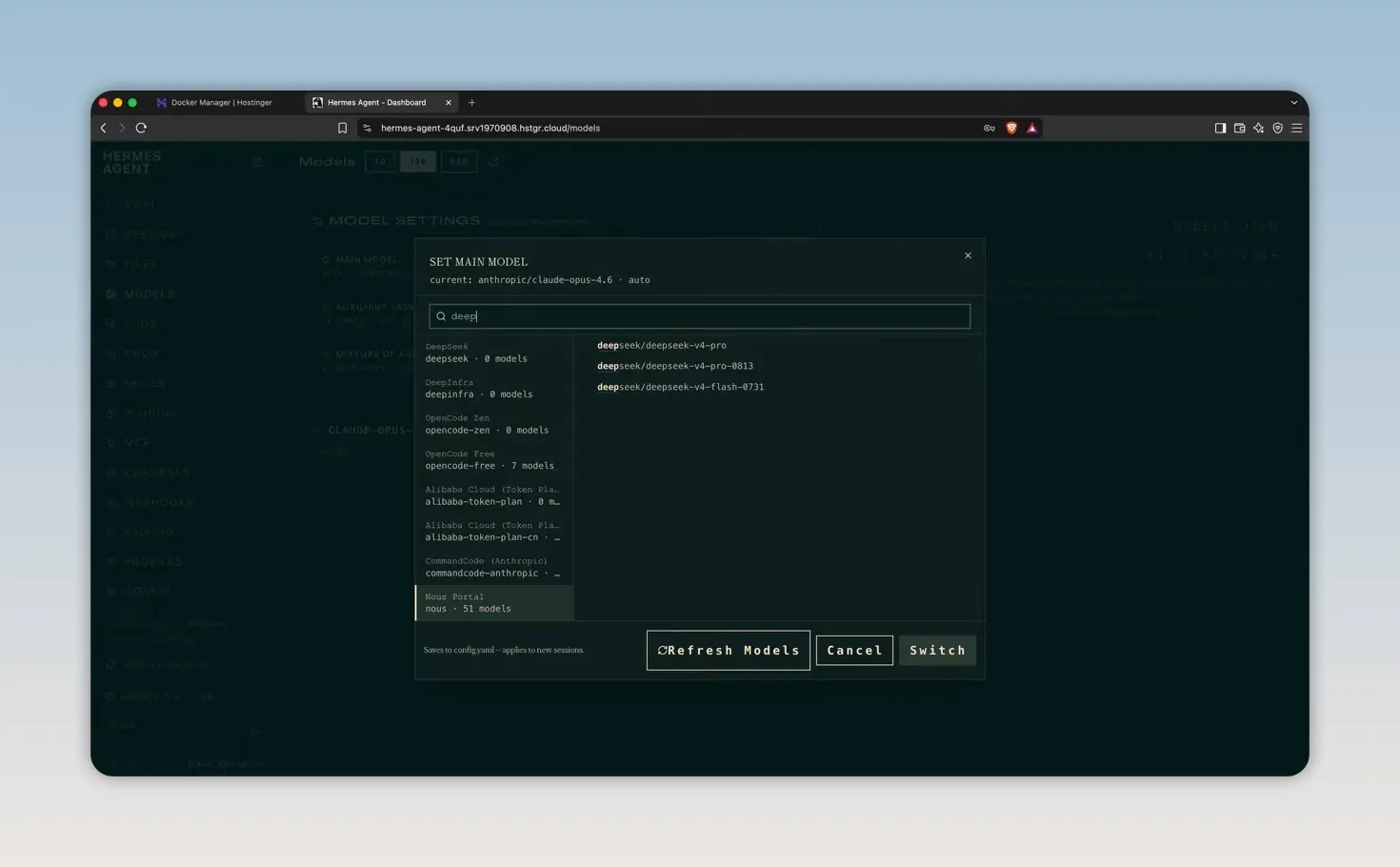
Return to Chat and send a simple greeting. You should now receive a response.
Then ask Hermes what tools it has. In this setup, it listed a browser, terminal commands, file operations, code execution, web search, subagents, memory, and scheduling.
That distinction matters: you don’t need to use a terminal yourself, but your agent can use command-line tools behind the scenes to get work done.
Step 3: Connect Hermes to Telegram
A working browser chat is useful. An agent that can reach your phone is much more useful.
We’re using Telegram because the connection flow is straightforward and supports text, files, voice notes, and photos in one conversation. Hermes also supports more than 20 other platforms, including Discord, Slack, and WhatsApp, so you can add another channel later.
Install Telegram from the official Telegram apps page if you don’t already have it, then keep your phone nearby.
Enable Telegram and Create Your Bot
- In the Hermes dashboard, open Channels.
- Find Telegram and enable its toggle.
- Click Restart to apply the change.
- Wait for the gateway to return to Running. If the status doesn’t update after a few minutes, refresh your browser.
- Select Create with QR in the Telegram section.
- Scan the QR code with your phone’s camera and open the link in Telegram.
- In the Nous-hosted HermesBot conversation, choose Create bot, then confirm with Create.
Creating the bot is only the first part. You still need to connect that bot to your Hermes installation.
Finish the Connection
Go back to the Nous-hosted HermesBot conversation. If you can’t find it in your chat list, scan the QR code again to reopen it.
- Find the message offering to connect the bot to your Hermes setup.
- Tap Connect this bot.
- Check that the bot name and your allowed Telegram user ID appear in the Hermes dashboard.
- Click Save and restart.
- Wait for Telegram to show as connected and the gateway to show as running.
Open your new bot using its Telegram username and tap Start. In this setup, Start alone didn’t begin an AI conversation, so send a normal message as well, such as asking whether it can hear you.
Set Telegram as Your Home Channel
You may receive a notice saying that no home channel is set. The home channel is where Hermes delivers scheduled job results and cross-platform messages.
Tap the set-home command offered in that notice. This makes the Telegram conversation the destination for notifications from your scheduled jobs.
Don’t skip this just because ordinary replies already work. Replying to a message and delivering a scheduled notification are two different parts of the setup.
Keep the Connection Safe
The QR connection flow adds your Telegram account to the allowlist. Other people who find the bot shouldn’t receive responses unless they’re allowed to use it.
Also remember that Telegram bot conversations are not end-to-end encrypted. Don’t send passwords or banking details through the bot. Telegram’s bot FAQ provides additional background on how bots work.
If Your Hermes Bot Stops Replying
Check these three things in order:
- Credits and rate limits. Open your model provider account and check your balance and any usage limits. Read the bot’s most recent message, too, because Hermes may already have explained the issue.
- Gateway status. Confirm that the gateway is running. If something looks wrong, restart it and wait for it to come back.
- Logs. Open Logs in the sidebar and filter for errors. You don’t need to understand every line to spot a relevant failure.
If those checks don’t resolve it, return to Hostinger’s Docker Manager. Open the three-dot menu beside the Hermes application and select Restart to restart the whole application.
Step 4: Give Hermes Its First Scheduled Job
Your agent now has a home, a model, and a way to reach you. The next step is giving it work that doesn’t require you to keep asking.
A great first job is a watcher: a task that checks something on a schedule and only messages you when there is something new.
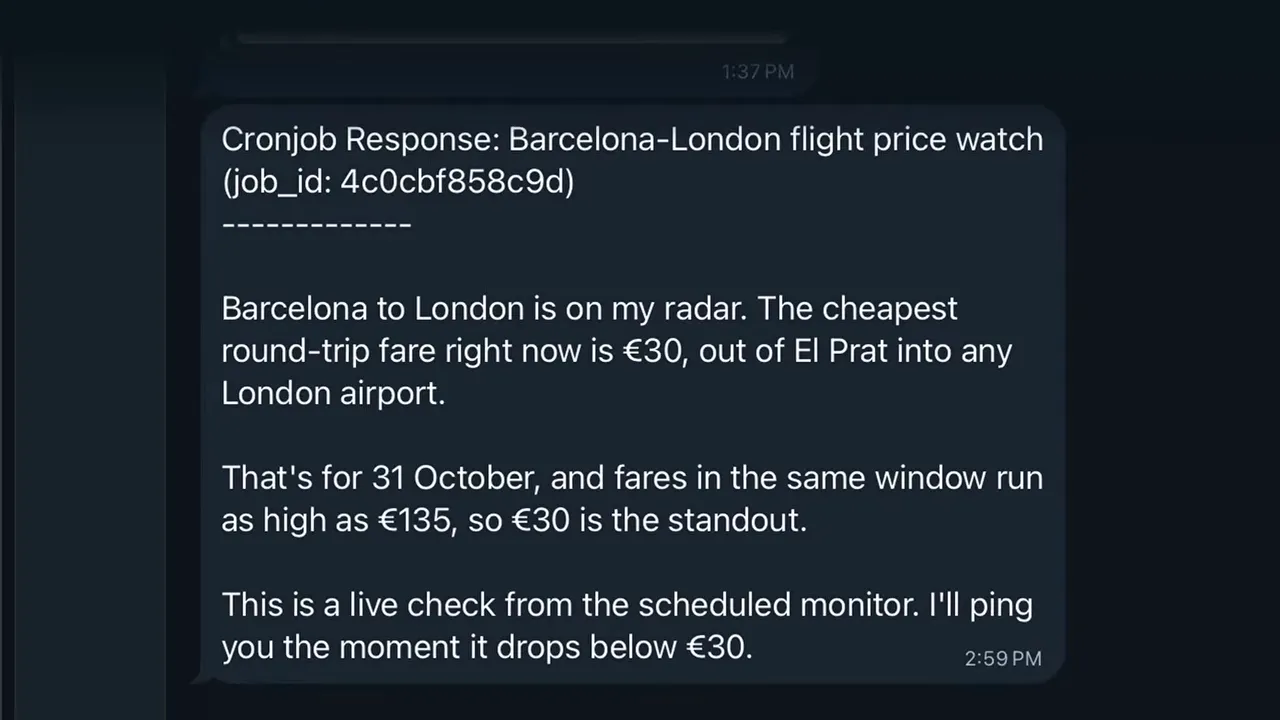
I used Barcelona-to-London flight prices. You could use another price, news about a topic you follow, or tomorrow’s weather.
Describe the Outcome, Not the Code
Start a new conversation in Hermes or Telegram and give it a request like this:
Monitor flight-price trends from Barcelona to London. Create a reusable skill for checking them, remember which results you’ve already sent me, and run the check every few hours. Notify me on Telegram only when there’s new information.
This request gives Hermes four important instructions:
- What to monitor: Flight prices on a specific route.
- How to repeat the work: Create a reusable skill.
- How to avoid repetition: Track results it has already sent.
- When and where to report: Check regularly and send new information through Telegram.
A skill is a set of step-by-step instructions the agent saves for itself. Instead of working out the same process from scratch each time, it has notes it can reuse.
Allow Time for the Initial Setup
My flight-price job took roughly 30 to 45 minutes to build. The initial configuration involved more than answering a question: Hermes researched the task, worked out a way to collect the information, built its checking process, created a skill, scheduled the job, and saved state to track previous results.
So while the core setup is quick, don’t expect every automation to be finished in a few seconds.
After Hermes confirms it has created the job, open Cron or your scheduled-jobs area and check the result. My flight watcher was configured to fetch prices every six hours.
The useful result is a message that arrives without another prompt from you.
Use the Same Pattern for Other Recurring Tasks
My own agent runs more than 20 scheduled jobs. They include checking bookkeeping every Monday, tracking birthdays and researching gifts early enough to order them, working on trip planning twice a day, and following up on a negotiation.
You don’t need to start with that many. One useful watcher is enough to learn the pattern: define the outcome, set a schedule, track what has already happened, and specify when you want a notification.
If a website blocks the agent, ask Hermes to find another source. A blocked page doesn’t necessarily mean the whole task is impossible.
Step 5: Teach Hermes a Preference It Can Remember
You’ve probably corrected an AI answer, received a better version, and then had to make the same correction in the next conversation.
Hermes can save a preference to memory so it remains available across new sessions and devices connected to the same agent.
Make a Specific Correction
For a simple test, ask Hermes to write a short social media post about studio lighting for complete beginners.
In my example, the first answer was too long and relied on headings and bullet points. Rather than just asking for a shorter rewrite, I gave it a clear preference to save:
Make it more concise. For short social posts, use punchy sentences and no more than three paragraphs. Avoid headings and bullet points. Save this as my writing preference.
Hermes confirmed that it had saved the preference and produced a much cleaner version. There was no settings file to edit. I explained what I wanted, the same way I would train a new hire.
Test It in a New Session
Now open a completely new conversation and ask for a short post about a different subject, such as roasting coffee.
The point is to see whether Hermes follows the saved structure without you repeating the formatting instructions. In my test, it did: short paragraphs, no headings, and no bullets.
Conversation context and saved memory are different. Context helps an AI follow instructions within one chat. Saved memory makes a preference available in later chats, including conversations started from another connected device.
Be specific about what should be remembered, then test it in a fresh session. That is a much better check than assuming a corrected reply means the preference was saved.
How Much Does Hermes Agent Cost to Run?
There are three pieces to keep separate:
- Hermes software: Free.
- The VPS: A fixed hosting cost for your selected plan and billing term.
- The model provider: The plan supplies credits, and model usage draws down that balance.
The server cost is predictable. Model spending changes with usage, which is why starting with an inexpensive model makes sense while you learn.
Open the Usage page in Nous Portal to see what you’ve actually spent rather than trying to estimate from the number of conversations alone.
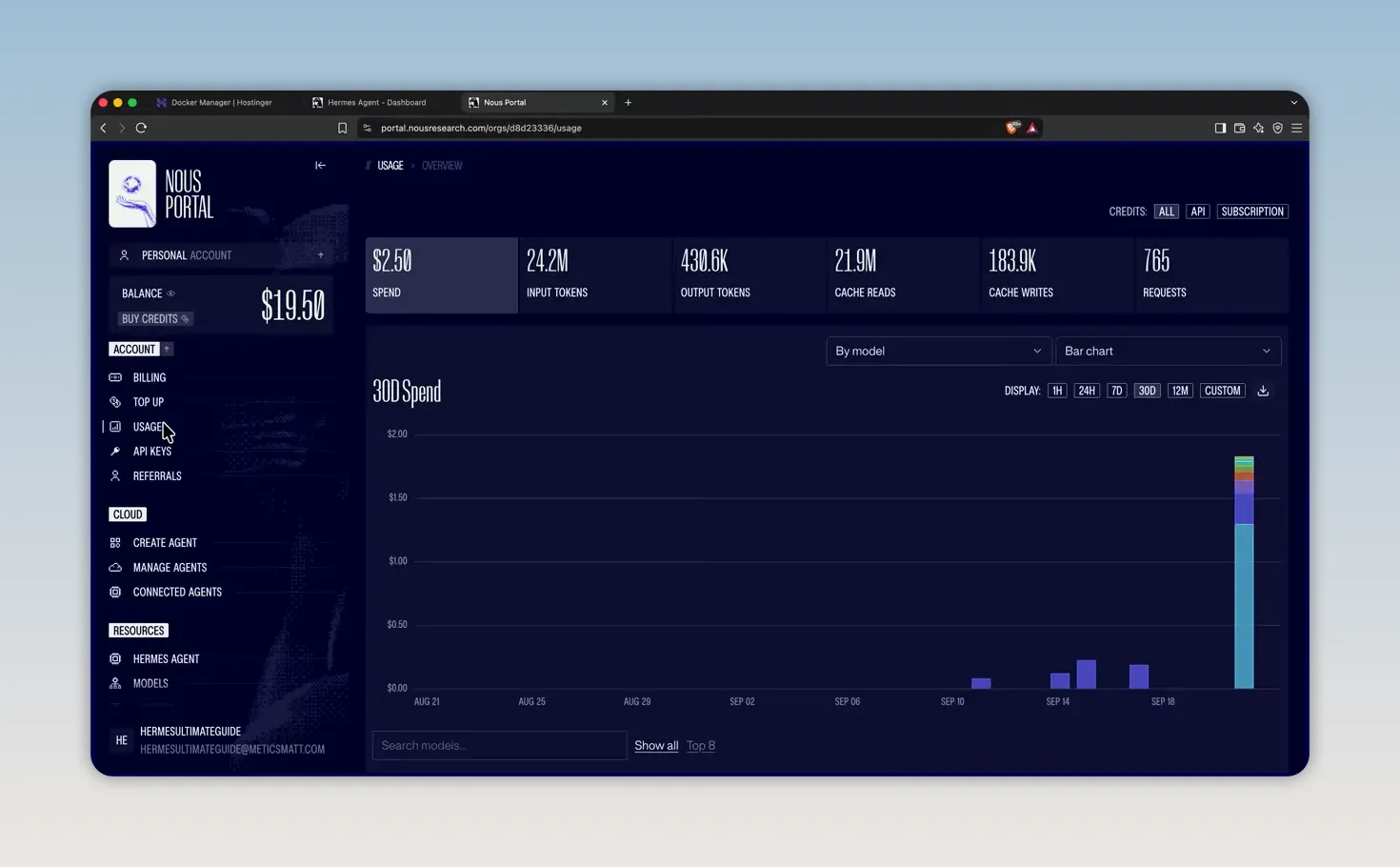
A low per-message price doesn’t make every task equally cheap. The flight watcher’s initial setup involved research, tools, and repeated work before it was ready. Check your usage after setting up jobs so you understand how your own agent consumes credits.
Start With One Job That Saves You Effort
You now have the core pieces of a self-hosted AI agent: an always-on server, a connected model, a Telegram conversation, scheduled work, and persistent preferences.
The important shift is from repeatedly asking for an answer to describing an outcome once. Hermes can then check on that outcome and bring new information back to you.
Start with one recurring task you genuinely care about. Confirm that the schedule exists, make sure notifications reach your phone, and teach the agent how you want its responses delivered. Once that works, you have a practical foundation for adding more.


